




Every Azure AI project starts in the same place: a resource. Before you can chat with a GPT-5 model, build an agent, or generate an image, you need somewhere in your Azure subscription for those models to live. Get this first step right and everything after it, from deployments to security to billing, becomes much easier.
In this hands-on guide, you’ll create an Azure OpenAI resource in Microsoft Foundry two ways: through the Azure portal and through the Azure CLI. We’ll also show you how to create a Microsoft Foundry resource (the option Microsoft recommends for most new projects), how to find your endpoint and keys, and how to clean everything up properly so you don’t pay for anything you’re not using.
No deep AI background is needed. If you have an Azure subscription and about 20 minutes, you can follow along.

Overview of Azure OpenAI in Microsoft Foundry
Azure OpenAI gives you access to OpenAI’s latest models, such as GPT-5.4-mini, GPT-5.5 and GPT-Image-2, running inside Microsoft’s cloud. It is part of Microsoft Foundry, Microsoft’s platform for building AI applications and ai agents.
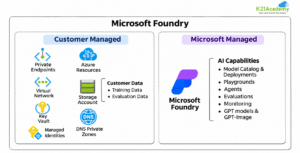
What makes it different from calling a model on the public internet is everything Azure wraps around it: enterprise security, private networking, Microsoft Entra ID sign-in, regional data processing, and the same billing and governance you already use for the rest of your Azure workloads.
To use these models, you first create a resource. The resource gives you an endpoint (the address your app sends requests to), keys for authentication, and a home for your model deployments.
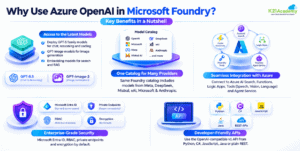
Why Use Azure OpenAI in Microsoft Foundry?
- Access to the latest models: Deploy GPT-5 family models for chat, reasoning and coding, GPT-Image models for image generation, and embedding models for search and RAG.
- One catalog for many providers: With a Foundry resource, the same catalog also includes models from Meta, DeepSeek, Mistral, xAI, Microsoft and Anthropic.
- Seamless integration with Azure: Connect easily to Azure AI Services including Azure AI Search, Azure Functions, Logic Apps, Foundry Tools (Speech, Vision, Language) and Foundry Agent Service.
- Enterprise-grade security: Use Microsoft Entra ID, role-based access control (RBAC), private endpoints and encryption by default.
- Developer-friendly APIs: Call your models with the OpenAI-compatible v1 API from Python, C#, JavaScript, Java or plain REST.
What Are Resource Groups in Azure?
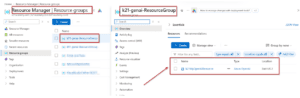
A resource group is a logical folder for related Azure resources. You put everything that belongs to one project, such as your AI resource, storage and search service, into the same group.
This makes life simpler in three ways:
- Organisation: You can see every resource for a project in one place.
- Access control: You can grant a team permission on the whole group instead of each resource.
- Easy cleanup: Delete the group, and everything inside it goes too. That is perfect for labs.
In this guide, we’ll create a resource group called k21-genai-ResourceGroup and keep all lab resources inside it.
Prerequisites
- Azure account
- An active Azure subscription. A free account or a pay-as-you-go subscription works.
- Access to the Azure portal at portal.azure.com.
- A valid payment method on the subscription, so resources can be billed.
- Access to Azure OpenAI
- Azure OpenAI models are available to Azure customers without a separate access request. Just make sure the model you plan to use is offered in the region you choose.
- Permissions
- Contributor or Owner on the resource group (or subscription) is enough to create the resource.
- To create a Microsoft Foundry resource and project for yourself, a role such as Foundry Account Owner or Foundry Owner also works.
- To give teammates access afterwards, you need a role that can assign roles, such as Owner or User Access Administrator. Team members who build and test apps typically get the Foundry User role.
- Microsoft Entra ID account
- You sign in to Azure with a Microsoft Entra ID account. The same identity can later be used for keyless (passwordless) access to your models.
- Network configuration (if applicable)
- If your organisation uses virtual networks, firewalls or private endpoints, check with your network team which access option you should choose.
- For the CLI method
- Azure Cloud Shell (no install needed) or the Azure CLI on your machine. Version 2.80.0 or later is required for the Foundry project commands.
Related Readings: AI-901 in 2026: Master Azure AI Fundamentals with 13+ Hands-On Labs
Create an Azure OpenAI Resource Using the Azure Portal
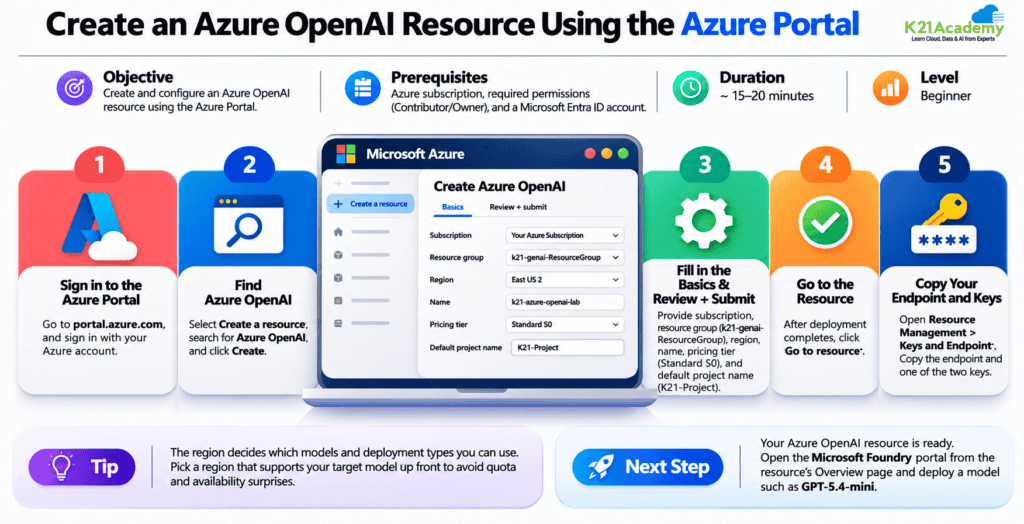
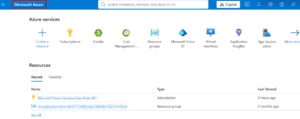
Step 1: Sign in to the Azure portal
Go to portal.azure.com and sign in with your Azure account.
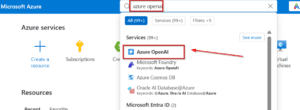
Step 2: Find Azure OpenAI
Select Create a resource, type Azure OpenAI in the search box, and select it. Then click Create.
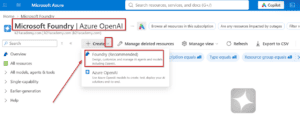
Step 3: Fill in the Basics tab and Review + submit
| Field | What to enter |
|---|---|
| Subscription | Select your Azure subscription. |
| Resource group | Select Create new and enter k21-genai-ResourceGroup. |
| Region | Choose a region that offers the model you plan to deploy, such as East US 2 or Sweden Central. Check Microsoft’s model region availability page if you’re unsure. |
| Name | Enter a unique name, for example k21-azure-openai-lab. This also becomes part of your endpoint URL. |
| Pricing tier | Standard S0 (the only tier currently offered). |
| Default project name | K21-Project |
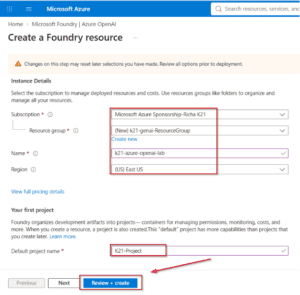
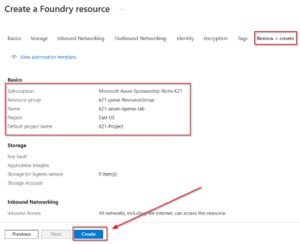
Tip: The region decides which models and deployment types you can use. Picking a region that supports your target model up front saves you from quota and availability surprises later.
Step 4: Go to the resource
Deployment usually finishes within a minute or two. When you see Your deployment is complete, click Go to resource.
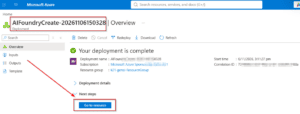
Step 5: Copy your endpoint and keys
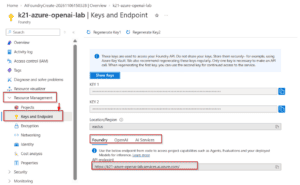
In the resource menu, open Resource Management > Keys and Endpoint. Copy the endpoint and one of the two keys. You’ll need them when your application calls a model. Keep the keys private and never commit them to code repositories.
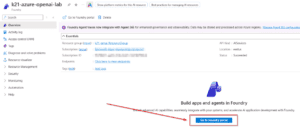
Your Azure OpenAI resource is ready. The next step is to open the Foundry portal from the resource’s Overview page and deploy a model such as GPT-5.4-mini.
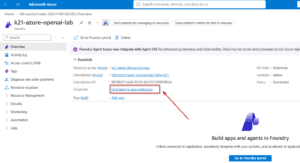
Your Azure OpenAI resource is ready. The next step is to open the Foundry portal from the resource’s Overview page and deploy a model such as GPT-5.4-mini.
Related Readings: Azure AI/ML Certifications: Step-by-Step Guide to Succeed in 2026
Recommended for New Projects: Create a Microsoft Foundry Resource
An Azure OpenAI resource gives you OpenAI models. A Microsoft Foundry resource gives you all of that plus the full model catalog (Meta, DeepSeek, Mistral, xAI, Microsoft, Anthropic), Foundry Agent Service, evaluations and Foundry Tools, all behind the same endpoint. Microsoft recommends the Foundry resource for most use cases, and new features land there first.
To create one in the portal:
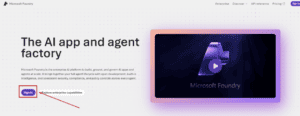
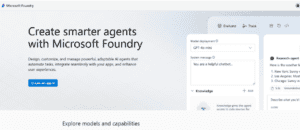
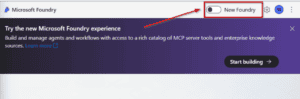
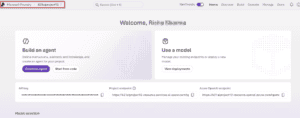
- Go to the Microsoft Foundry portal https://ai.azure.com/ and sign in using your Azure credentials.


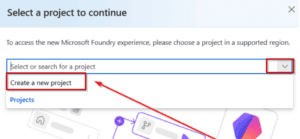
- When prompted, create a new project and enter a valid name for your project.

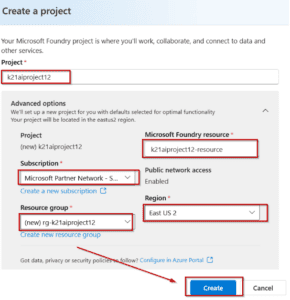
- Expand Advanced options and specify the following settings:
- Project Name: K21aiproject12
- Foundry resource: A valid name for your Foundry resource
- Subscription: Your Azure subscription
- Resource group: Select your resource group, or create a new one.
- Region: Select any AI Foundry recommended/supported*

Note: *Some Azure AI resources are constrained by regional model quotas. In the event of a quota limit being exceeded later in the exercise, there’s a possibility you may need to create another resource in a different region
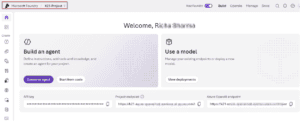
- Wait for the deployment to complete. Once completed, the project home page will be displayed.

Good to know: Already created an Azure OpenAI resource? You can upgrade it to a Foundry resource later. Your resource name, endpoint, keys, custom domain and network settings stay the same.
Related Readings: Azure AI Foundry vs. Azure Machine Learning: Key Differences Explained by K21 Academy
Create an Azure OpenAI Resource Using the Azure CLI
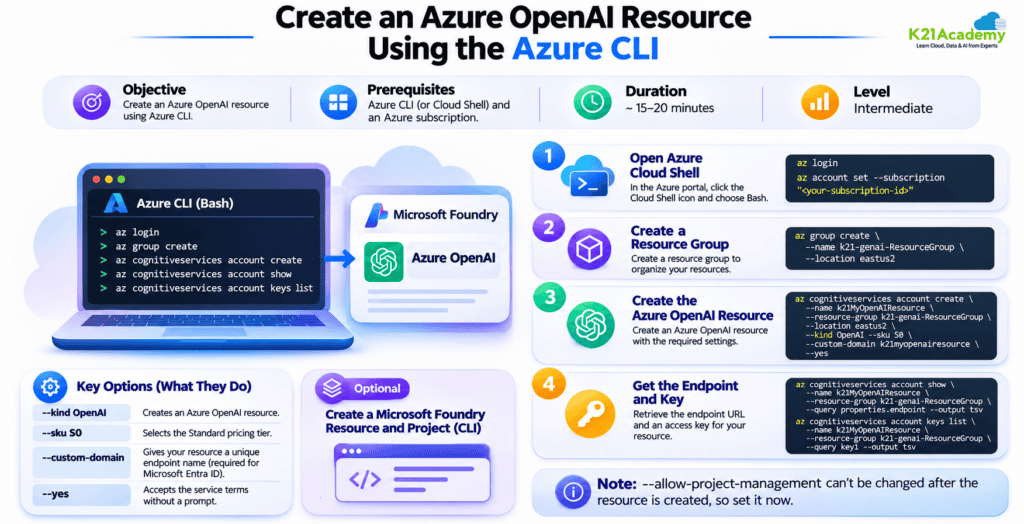
The portal is great for learning. For repeatable setups across dev, test and production, the Azure CLI is faster and less error-prone.
Step 1: Open Azure Cloud Shell
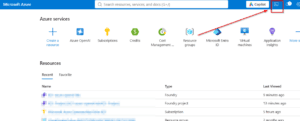
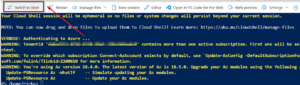
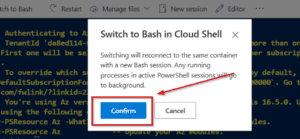
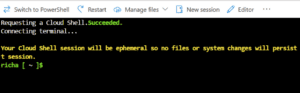
In the Azure portal, click the Cloud Shell icon in the top bar and choose Bash. Bash lets you paste the multi-line commands below exactly as written. (If you prefer PowerShell, keep each command on one line.)
If you’re using the CLI on your own machine instead, sign in first:
az login
az account set –subscription “<your-subscription-id>”
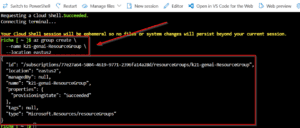
Step 2: Create a resource group
az group create \
–name k21-genai-ResourceGroup \
–location eastus2
Step 3: Create the Azure OpenAI resource
az cognitiveservices account create \
–name k21MyOpenAIResource \
–resource-group k21-genai-ResourceGroup \
–location eastus2 \
–kind OpenAI \
–sku S0 \
–custom-domain k21myopenairesource \
–yes
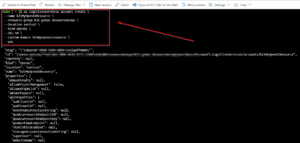
Here’s what each part does:
- –kind OpenAI creates an Azure OpenAI resource.
- –sku S0 selects the Standard pricing tier.
- –custom-domain gives your resource its own endpoint name. It must be globally unique, and it is required if you want to use Microsoft Entra ID (keyless) authentication.
- –yes accepts the service terms without an interactive prompt.
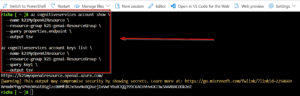
Step 4: Get the endpoint and key
az cognitiveservices account show \
–name k21MyOpenAIResource \
–resource-group k21-genai-ResourceGroup \
–query properties.endpoint \
–output tsv
az cognitiveservices account keys list \
–name k21MyOpenAIResource \
–resource-group k21-genai-ResourceGroup \
–query key1 \
–output tsv
Optional: Create a Microsoft Foundry resource and project with the CLI
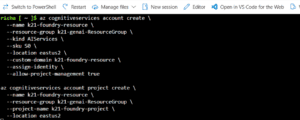
To create the recommended Foundry resource instead, use –kind AIServices and then add a project:
az cognitiveservices account create \
–name k21-foundry-resource \
–resource-group k21-genai-ResourceGroup \
–kind AIServices \
–sku S0 \
–location eastus2 \
–custom-domain k21-foundry-resource \
–assign-identity \
–allow-project-management true
az cognitiveservices account project create \
–name k21-foundry-resource \
–resource-group k21-genai-ResourceGroup \
–project-name k21-foundry-project \
–location eastus2
–allow-project-management can’t be changed after the resource is created, so set it now.
Delete Azure OpenAI Resources
When you finish the lab, delete what you created so you aren’t billed for resources you no longer need.
Delete using the Azure portal
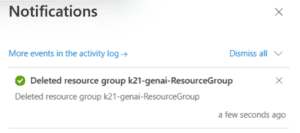
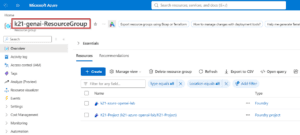
- In the Azure portal, select Resource groups.

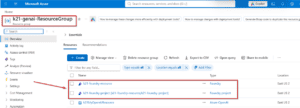
- Open k21-genai-ResourceGroup.

- Click Delete resource group.

- Type the resource group name to confirm, then click Delete.


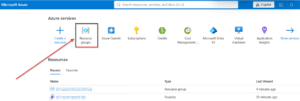
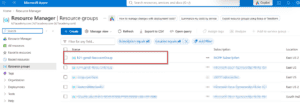
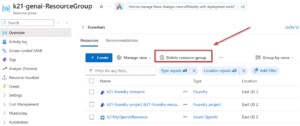
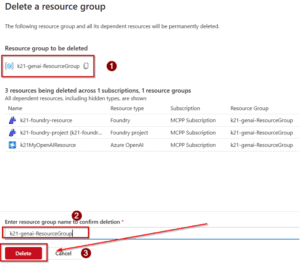
Delete using the Azure CLI:
Delete the whole resource group and everything in it:
az group delete –name k21-genai-ResourceGroup –yes –no-wait

Reusing the same resource name? Purge it first
Deleted AI resources are soft-deleted and kept for 48 hours so you can recover them. During that time, you can’t create a new resource with the same name. If you want to repeat the lab with the same name straight away, purge the deleted resource:
az cognitiveservices account purge \
–name k21MyOpenAIResource \
–resource-group k21-genai-ResourceGroup \
–location eastus2
You can also purge from the portal under Manage deleted resources. Purging is permanent, so only do it when you’re sure you don’t need the resource back.
Cost tip: If you used provisioned deployments, delete those deployments before deleting the resource. Provisioned capacity keeps billing until the resource is purged.
Related Readings: MLOps, AIOps and different -Ops frameworks
Real-World Example Scenarios
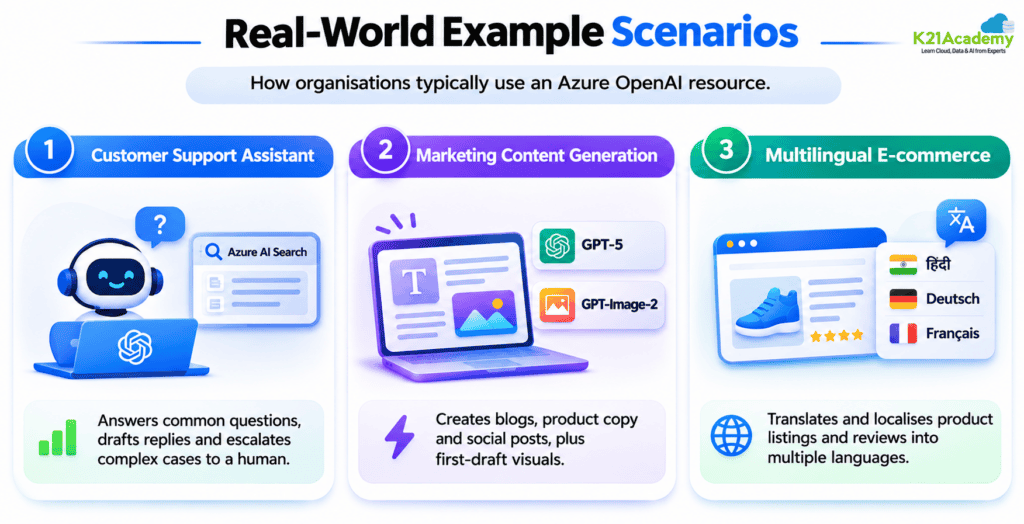
Here’s how organisations typically put an Azure OpenAI resource to work.
1. Customer support assistant
A support team deploys a GPT-5 model and connects it to Azure AI Search over its help-centre articles. The assistant answers common questions instantly, drafts replies for agents, and hands complex cases to a human. Response times drop, and agents spend more time on the issues that need them.
2. Marketing content generation
A marketing team uses a GPT-5 model to draft blog outlines, product descriptions and social posts in the brand’s tone, and GPT-Image-2 to create first-draft visuals. Writers review and polish the output, cutting production time for routine content.
3. Multilingual e-commerce
An online store uses a GPT-5 model to translate and localise product listings and customer reviews into several languages. Shoppers read content in their own language, and the store expands into new markets without hiring a translator for every page.
Related Readings: The Best Chatbot Development Tools
Challenges and Solutions
| Challenge | How to solve it |
|---|---|
| Managing costs | Monitor token usage in Azure Monitor, set budget alerts, keep prompts concise, and use smaller models such as GPT-5.4-mini or GPT-5.4-nano for simple tasks. |
| Data privacy and security | Use Microsoft Entra ID (keyless) authentication instead of API keys, apply RBAC with the Foundry roles, restrict network access or use private endpoints, and rely on Azure’s encryption at rest. |
| Integrating with existing systems | Use the OpenAI-compatible v1 API and SDKs, design integrations as small modular services, and test in a separate dev resource group before production. |
| Model limitations | Ground answers in your own data with RAG (Azure AI Search), apply content filters, run evaluations in Foundry, consider fine-tuning for specialist tasks, and keep a human review step for high-impact outputs. |
Related Readings: Comparing the Best AI Chatbots for Your Business: What’s Best for You?
Conclusion
You’ve now created an Azure OpenAI resource in Microsoft Foundry using both the Azure portal and the Azure CLI, found your endpoint and keys, and learned how to clean up and purge resources properly. You’ve also seen how a Microsoft Foundry resource extends the same setup with a wider model catalog, agents and evaluations.
With your resource in place, the next step is deploying a model, such as GPT-5.4-mini, and connecting it to your first application.
Frequently Asked Questions
Azure OpenAI integrates with Azure AI Search for retrieval-augmented generation (RAG), Azure Functions and Logic Apps for automation, Foundry Tools such as Speech, Vision, and Language, and Foundry Agent Service for building AI agents. These services share Azure's identity, networking, and monitoring capabilities.
A Resource Group is a container that holds related Azure resources for a specific project. It helps you manage access, track costs, and delete all resources associated with a project in a single action.
For most new projects, Microsoft recommends creating a Microsoft Foundry resource. It includes all the capabilities of an Azure OpenAI resource, along with models from other providers, Foundry Agent Service, and evaluation tools. An Azure OpenAI resource is suitable if you only need OpenAI models or your organization has not enabled Foundry yet. You can upgrade it later.
To secure your data when using Azure OpenAI, use Microsoft Entra ID authentication instead of API keys, assign least-privilege RBAC roles such as Foundry User, and restrict network access using selected networks or private endpoints. Store any API keys in Azure Key Vault. Your data is encrypted at rest by default.
Deleted Azure AI resources are soft-deleted for 48 hours, allowing them to be recovered. To reuse the same resource name immediately, permanently purge the deleted resource using the az cognitiveservices account purge command or the Manage Deleted Resources option in the Azure portal.
Choose an Azure region that supports the specific model and deployment type you need. East US 2 and Sweden Central are popular choices with broad model availability. You can check Microsoft's model region availability page to find the latest supported regions.
No. You do not need to be an AI expert to use Azure OpenAI. By following the setup guide, you can create a resource, deploy a model, and test it in the Foundry playground. Basic knowledge of APIs is helpful when you start building applications. How does Azure OpenAI integrate with other Azure services?
What are Resource Groups in Azure?
Should I create an Azure OpenAI resource or a Microsoft Foundry resource?
How do I secure my data when using Azure OpenAI?
Why can't I create a resource with the same name after deleting it?
Which region should I choose for Azure OpenAI?
Do I need to be an AI expert to use Azure OpenAI?
Next Task: Enhance Your Azure AI/ML Skills