






If you’re preparing for AI-901 (Azure AI Fundamentals), AI-103 (Azure AI Apps and Agents Developer Associate) or AI-300 (MLOps Engineer Associate), you’ll encountering technical errors while working with Python code and jupyter notebooks regularly, so a broken Python setup costs you valuable study time. The good news is that this error is common and quick to fix.
Working through Azure AI labs on Windows, whether on your own laptop or an Azure virtual machine, can stop suddenly with an error like “ImportError: DLL load failed while importing _cext”. It usually appears the moment you import a Python library such as Matplotlib, NumPy or Pandas, and it can block you in the middle of a hands-on lab.
In this guide, you’ll learn what the error means, why it happens, and how to fix it step by step by installing the right Microsoft Visual C++ Redistributable.
Topics covered in this blog are:
- What is DLL Load Failed While Importing _cext: Error?
- Common Causes of the “DLL Load Failed” Error
- How to Fix ImportError: DLL Load Failed While Importing _cext (Step-by-Step Solutions)
- Conclusion
- Faqs

What is DLL Load Failed While Importing _cext: Error?
The “DLL load failed while importing _cext” error occurs when Python cannot load a required C extension due to missing or incompatible DLLs. In Azure AI/ML labs, this issue typically arises when using libraries like numpy, pandas, or scipy, which rely on C extensions for optimized performance.
This error often happens in Windows-based virtual machines when the necessary Microsoft Visual C++ Redistributables are not installed or are incompatible. Once installed, these libraries remain available for all subsequent tasks without needing reinstallation. Resolving this error ensures smooth execution of AI/ML workflows in Azure, preventing delays in experiments and projects.

Common Causes of the “DLL Load Failed” Error:
The “DLL load failed” error commonly occurs when the required Microsoft Visual C++ Redistributable libraries are missing or incompatible with the system. These libraries are essential for running Python packages, particularly those that rely on native C extensions, such as Matplotlib and Kiwisolver. Without these redistributables, the C extensions cannot load, causing the error.
Here are some common causes:
- Missing or Corrupted Microsoft Visual C++ Redistributable Libraries:
- Many Python packages, including those used in Azure AI/ML labs, depend on these libraries to function correctly. If the system lacks the necessary C++ Redistributables or if they’re corrupted, the DLLs required by Python packages will not load, triggering the error.
- Incompatible Redistributable Versions:
- Different Python packages may require specific versions of the Visual C++ Redistributables. Using outdated or incompatible versions can lead to DLL loading failures. Ensuring the correct version is installed is crucial.
- Uninstalled Dependencies for C Extensions:
- Some libraries that rely on C extensions may not install their dependencies automatically. This can result in missing DLL files, causing the error when Python tries to load the package.
By ensuring the correct Microsoft Visual C++ Redistributable libraries are installed, you can avoid this common cause of the “DLL load failed” error and ensure smooth execution of AI/ML tasks in Azure.
How to Fix ImportError: DLL Load Failed While Importing _cext (Step-by-Step Solutions):
Follow these steps to resolve the “DLL load failed while importing _cext” error by installing the required Microsoft Visual C++ Redistributable:
1. Download the Microsoft Visual C++ Redistributable
-
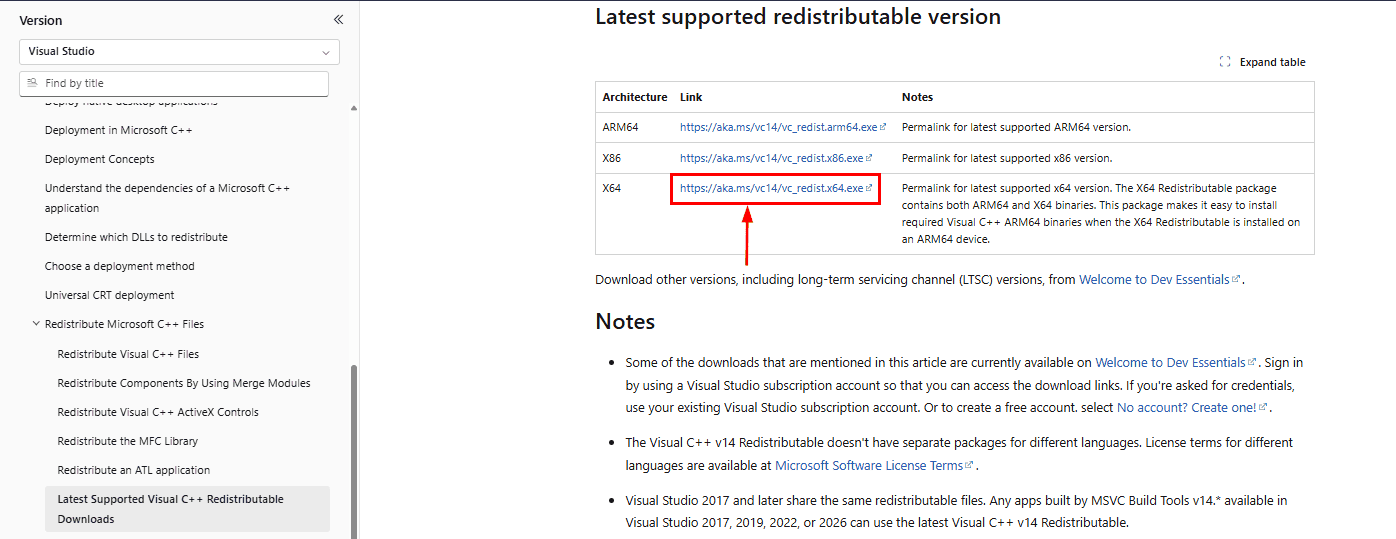
- Go to the official Microsoft Visual C++ Redistributable Download Page:
https://learn.microsoft.com/en-us/cpp/windows/latest-supported-vc-redist
- Go to the official Microsoft Visual C++ Redistributable Download Page:

-
- Select the appropriate version based on your system architecture:
-
-
- x64 for 64-bit systems
- x86 for 32-bit systems
-
2. Run the Installer
-
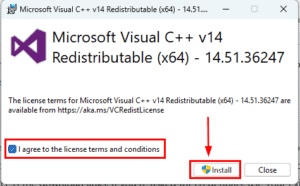
- Download the installer (e.g.,
VC_redist.x64.exe) and run it.
- Download the installer (e.g.,
-
- Accept the license terms and click Install to proceed.
 3. Verify Installation
-
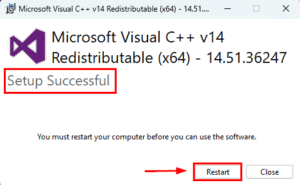
- Once the installation is complete, you will see a “Setup Successful” message.
4. Restart the Virtual Machine
-
- Restart your Azure VM or local environment to ensure the changes take effect.
5. Re-run Your Python Code
-
- After restarting, re-run your Python script or project. The DLL load failed error should now be resolved.
By following these steps, you ensure the correct C++ Redistributable libraries are installed, enabling Python libraries with C extensions like Matplotlib and Kiwisolver to function seamlessly in your Azure AI/ML labs.
Conclusion
In this blog, we explored the “DLL Load Failed While Importing _cext” error, a common issue faced during Python-based AI/ML workflows on Microsoft Azure. This error often impacts libraries like NumPy, Pandas, and Matplotlib, which rely on C extensions for optimized performance. We discussed its root causes, including missing or incompatible Microsoft Visual C++ Redistributable libraries, and emphasized the importance of having the correct dependencies to ensure smooth execution of Python packages.
To help you resolve this issue, we provided a step-by-step guide on downloading, installing, and verifying the required Visual C++ Redistributable libraries. By following these steps, you can eliminate this error and maintain uninterrupted progress in your AI/ML projects. Addressing such technical challenges not only boosts your workflow efficiency but also strengthens your problem-solving skills, preparing you for real-world scenarios in AI and Machine Learning.
FAQs
Why do C extensions matter for Python packages?
C extensions provide optimized performance for Python libraries, enabling them to execute computationally intensive tasks faster. These extensions rely on DLLs, and if they are missing, the package cannot function.
What are common libraries that trigger this error?
Libraries like Matplotlib (through its Kiwisolver dependency), NumPy, Pandas, SciPy, TensorFlow, and PyTorch often trigger this error because they rely heavily on C extensions.
Is it safe to install multiple versions of Microsoft Visual C++ Redistributables?
Yes, it’s common to have multiple versions of Visual C++ Redistributables installed side-by-side, as different applications may require different versions.
What’s the difference between x64 and x86 versions of Visual C++ Redistributables?
The x64 version is for 64-bit systems, while x86 is for 32-bit systems. Installing the incorrect version for your system architecture can lead to errors. Always match the Redistributable to your system type and Python architecture.
How do I check if my Python is 32-bit or 64-bit?
Open a terminal and type python. The startup message shows whether your Python is 64 bit or 32 bit. Install the Visual C++ Redistributable that matches it.
Does this error happen on macOS or Linux?
No, this error is specific to Windows, where Python loads DLL files. macOS and Linux use different shared-library formats, so you would see a different import error there.
What should I do if installing the Redistributable does not fix the error?
Create a clean virtual environment, uninstall the affected package, and install it again with pip. Also confirm that your Python version and architecture (32-bit or 64-bit) match the package you are installing.
Related/References :
- Join Our Generative AI Whatsapp Community
- Azure AI/ML Certifications: Everything You Need to Know
- Create Azure OpenAI Service Resources using Console & CLI: Step-by-step Activity Guide
- Azure GenAI/ML: Step-by-Step Activity Guide (Hands-on Lab) & Project Work for Getting a Job & Certification
- Deploying Foundation Models in Azure OpenAI Studio
- ErrNo 11001: Get Addrinfo Failed, Module Not Found Error: ‘No module named azure & dotenv’
Next Task: Enhance Your Azure AI/ML Skills