




Generative AI is no longer experimental. It is becoming a core capability for modern applications, yet many developers still struggle with deploying Foundation Models in Microsoft Foundry efficiently. From advanced Natural Language Processing (NLP) tasks like chatbots, summarization, and content generation to multimodal AI applications using GPT-5 and GPT-Image, organizations are rapidly adopting AI-powered solutions across industries.
If you’ve ever found the setup process confusing or time-consuming, you’re not alone.
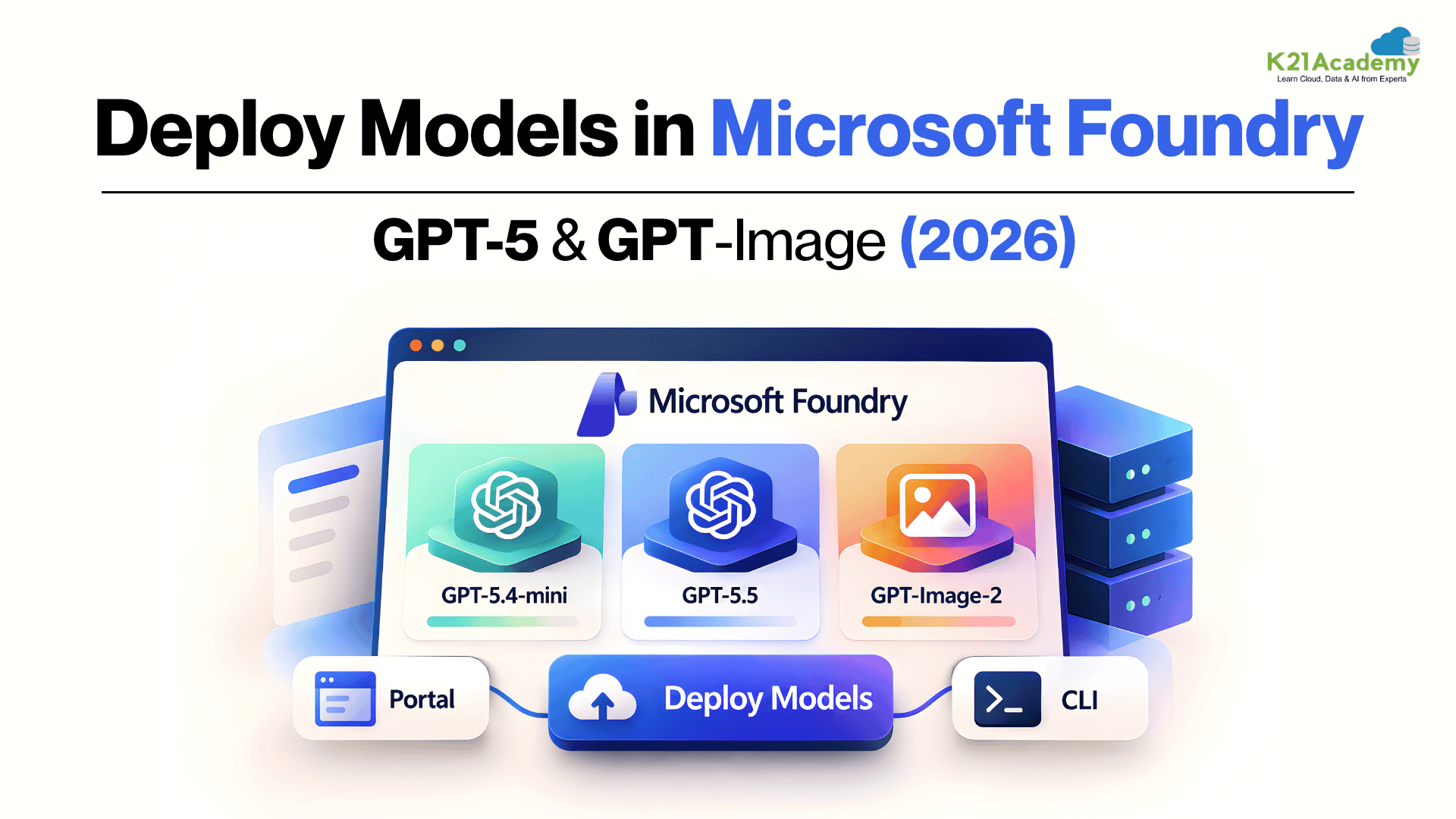
In this blog, you’ll learn how to successfully deploy and manage models like GPT-5.4-mini, GPT-5.5, and GPT-Image-2 using Microsoft Foundry (formerly Azure AI Foundry). We’ll cover the key aspects of setup, explore practical deployment approaches using both the portal and the CLI, and share actionable tips to help you avoid common mistakes and optimize your workflow.
By the end, you’ll have a clear, step-by-step understanding of how to use Azure OpenAI in Microsoft Foundry for real-world AI, NLP, and multimodal applications. Let’s dive into the complete process.

Hands-On Labs to Master Microsoft Foundry Deployments with GPT-5 and GPT-Image
Lab 1: Deploy a GPT-5 Model in Microsoft Foundry
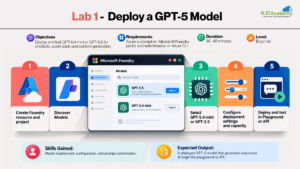
Objective
Learn how to deploy and interact with GPT-5 family models (such as GPT-5.4-mini) in Microsoft Foundry for real-world applications like chatbots, automation, and content generation.
Tools Required
- An active Azure subscription
- Microsoft Foundry portal (ai.azure.com)
- Web browser or Azure CLI
Estimated Time
30–45 minutes
Difficulty Level
Beginner
Step-by-Step Instructions
- Log in to the Azure Portal and create a Microsoft
- Foundry resource and project
- Open the Microsoft Foundry portal
- Go to Discover > Models
- Select a model: GPT-5.4-mini or GPT-5.5
- Configure deployment settings (name, deployment type, capacity)
- Deploy the model
- Test using the playground or the API
Skills You Will Build
- Model deployment and configuration
- Understanding Azure OpenAI environment
- Prompt testing and optimization
Real-World / Certification Mapping
- Helps in AI-powered application development
- Relevant for Azure AI Apps and Agents Developer (AI-103) and AI Project Management certifications
Expected Output
- Successfully deployed GPT-5 model
- Ability to generate responses via playground or API
Lab 2: Image Generation with GPT-Image-2
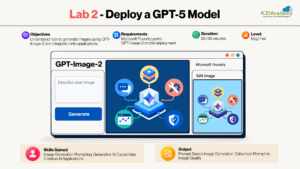
Objective
Understand how to generate images using GPT-Image-2 in Microsoft Foundry and integrate it into applications.
Tools Required
- Microsoft Foundry portal
- GPT-Image-2 model deployment
- Basic prompt design knowledge
Estimated Time
25–35 minutes
Difficulty Level
Beginner
Step-by-Step Instructions
- Navigate to the Microsoft Foundry portal
- Deploy GPT-Image-2 from Discover > Models and open the image playground
- Enter a descriptive prompt (e.g., “A futuristic smart city”)
- Generate images
- Experiment with prompt variations and image edits for better results
Skills You Will Build
- Prompt engineering for image generation
- Understanding generative AI capabilities
- Creative AI application design
Real-World / Certification Mapping
- Useful in marketing, design, and product visualization
- Relevant for AI-driven product development roles
Expected Output
- AI-generated images based on prompts
- Improved prompt-to-image quality understanding
Lab 3: Automating Deployment using Azure CLI
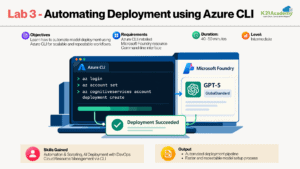
Objective
Learn how to automate model deployment using Azure CLI for scalable and repeatable workflows.
Tools Required
- Azure CLI installed (or Azure Cloud Shell)
- Microsoft Foundry resource
- Command-line interface
Estimated Time
40–50 minutes
Difficulty Level
Intermediate
Step-by-Step Instructions
- Install and configure Azure CLI
- Log in using az login
- Set your subscription
- List available models with az cognitiveservices account list-models
- Use CLI commands to create a GPT-5 deployment with the GlobalStandard SKU
- Verify deployment status
- Test using the v1 API
Skills You Will Build
- Automation and scripting
- DevOps practices in AI deployment
- CLI-based cloud resource management
Real-World / Certification Mapping
- Critical for scalable AI systems in enterprises
- Aligns with DevOps and Azure certification paths
Expected Output
- Automated deployment pipeline
- Faster and repeatable model setup process
Lab 4: Monitoring and Managing Deployments
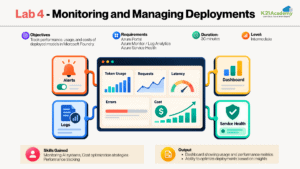
Objective
Track performance, usage, and costs of deployed models in Microsoft Foundry.
Tools Required
- Azure Portal
- Azure Monitor / Log Analytics
- Azure Service Health
Estimated Time
30 minutes
Difficulty Level
Intermediate
Step-by-Step Instructions
- Open your Foundry resource in the Azure Portal and go to Metrics
- Add charts for token usage, requests, latency and errors
- Set up alerts and send diagnostic logs to Log Analytics
- Create dashboards for monitoring
- Set a Service Health alert for model version updates (service name: Azure OpenAI Service)
- Analyze usage and performance
Skills You Will Build
- Monitoring AI systems
- Cost optimization strategies
- Performance tracking
Real-World / Certification Mapping
- Essential for production AI systems
- Supports roles in AI operations and project management
Expected Output
- Dashboard showing usage and performance metrics
- Ability to optimize deployments based on insights
Deployment Types: Standard vs Provisioned vs Global
Choosing the right deployment type in Microsoft Foundry isn’t just a technical decision. It directly impacts cost, performance, scalability, data residency, and reliability of your AI applications. Below is a clear comparison to help you understand how Standard, Provisioned, and Global deployments differ and when each one makes sense.
| Feature | Standard Deployment | Provisioned Deployment | Global Deployment |
|---|---|---|---|
| Capacity Model | Shared, pay-as-you-go, routed across Azure regions | Shared, pay-as-you-go, single region | Dedicated, reserved throughput (PTUs) |
| Performance Consistency | Any Azure region | Deployment region only | Depends on option: global, data zone, or single region |
| Latency | Good, can vary under heavy load | Can vary under heavy load | Highly consistent, low latency variance |
| Scalability | Widest, new models arrive here first | Narrower, new models arrive here last | Broad, follows Global Standard |
| Cost Structure | Pay-per-token, usually the lowest price | Pay-per-token | Reserved capacity (hourly or reservation) |
| Use Case Fit | Most workloads, testing to production | Strict single-region requirements | High, steady production traffic |
| Availability Guarantees | Standard SLA | Higher reliability | Multi-region resilience |
| Setup Complexity | Simple | Moderate | Advanced |
Understanding Microsoft Foundry ^
Microsoft Foundry (formerly Azure AI Foundry, and before that Azure AI Studio) is Microsoft’s cloud platform that lets you integrate advanced AI models, including Azure OpenAI models, into your applications. It offers a portal that makes deploying and managing AI models straightforward, along with playgrounds, agents, evaluations and monitoring in one place.
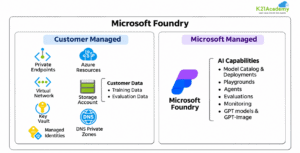
With Microsoft Foundry, you don’t need deep machine learning expertise to use powerful models like GPT-5 and GPT-Image. The platform simplifies tasks such as building customer service chatbots or generating marketing content.
You can deploy models through the Microsoft Foundry portal, Azure CLI, Bicep, or REST APIs. This flexibility allows you to choose the method that best fits your workflow.
By using Microsoft Foundry, you can quickly bring AI-driven solutions to life and innovate within your organization.
Exploring Key Foundation Models ^
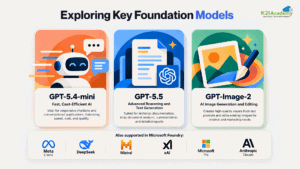
1) GPT-5.4-mini: Fast, Cost-Efficient Text Intelligence
GPT-5.4-mini is a compact member of the GPT-5 family designed for fast, affordable responses without giving up much quality. This model is perfect for creating customer service chatbots that need to handle long conversations and respond accurately throughout extended interactions. It helps improve the overall experience by keeping responses relevant and coherent, even in complex conversations. In this blog, we will focus on deploying the GPT-5.4-mini model in Microsoft Foundry.
2)GPT-5.5: High-Performance Reasoning and Text Processing
GPT-5.5 is a more capable GPT-5 model built for complex reasoning and high-quality text generation. It’s ideal for tasks like generating technical documentation, summarizing notes, analysing long documents, or creating detailed reports. This model gives you accurate, well-structured results, making it a great choice for applications that need deeper understanding.
3)GPT-Image-2: Creative Image Generation
GPT-Image-2 is an image generation model that creates high-quality images from text descriptions and can also edit existing images. Whether you need custom artwork, marketing visuals, or creative designs, GPT-Image-2 can transform your text into stunning visuals. It’s a perfect tool for bringing creative ideas to life quickly and easily.
Beyond OpenAI models, the Foundry model catalog also includes models from Meta (Llama), DeepSeek, Mistral, xAI, Microsoft (Phi) and Anthropic (Claude), all deployed the same way.
Step-by-Step Guide: Deploying Models in Microsoft Foundry^
In this section, we will walk through the step-by-step process of deploying the GPT-5.4-mini model using the Microsoft Foundry portal. This method is user-friendly and ideal for those who prefer a graphical interface.
Step 1: Ensure a Microsoft Foundry Resource is Created
Before starting the deployment, make sure you have already created a Microsoft Foundry resource and a project.
If not, you can follow this Step-by-Step Guide to create the resource.
Step 2: Navigate to the Microsoft Foundry Portal
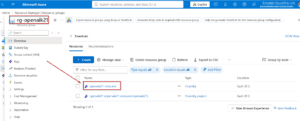
1) Go to the Azure Portal. Locate and navigate to your deployed Microsoft Foundry resource.
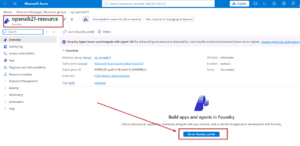
2) On the Overview page of your resource, click on the Go to Foundry portal button to open the portal. You can also go directly to ai.azure.com.
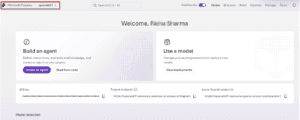
Note: If the portal opens in the classic view, use the toggle in the top banner to switch to Microsoft Foundry (new). Check the upper left corner to confirm your project is selected.
Step 3: Access the Model Catalog
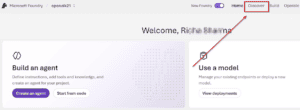
1) In the Microsoft Foundry portal, select Discover in the top navigation, then Models in the left pane.
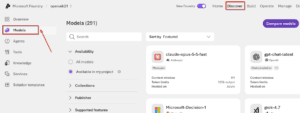
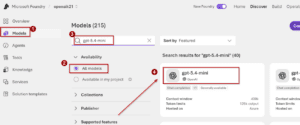
2) Here, you can browse all available models. Search for gpt-5.4-mini and open its model card to view its description, supported deployment types and versions. Your existing deployments are listed under the Build section.
Step 4: Create a New Deployment for GPT-5.4-mini and deploy the model
1) On the gpt-5.4-mini model card, select Deploy to default settings to initiate the deployment process.
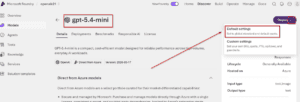
2) Microsoft Foundry will create the deployment and open the playground, where you can send a test prompt to confirm the GPT-5.4-mini model has been successfully deployed.
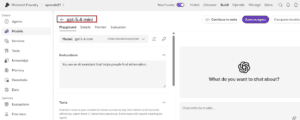
Congratulations! You have successfully deployed the GPT-5.4-mini model using Microsoft Foundry. Your model is now ready to be integrated into your applications, allowing you to harness its powerful capabilities for fast, accurate conversational AI.
Cleaning Up Resources ^
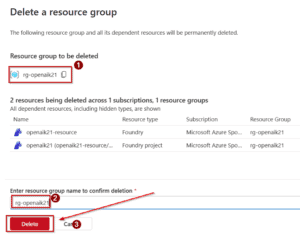
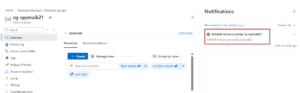
When you’re finished with your Azure OpenAI resource, it’s important to delete the deployment or the entire resource to avoid unnecessary costs.
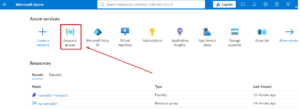
1) Go to the Azure Portal and Select Resource groups from the left-hand menu.
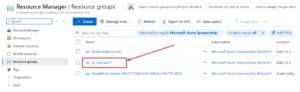
2) Click on the resource group you created for this lab.
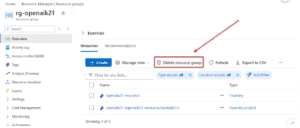
3) Click on Delete resource group, type the name to confirm, and delete the group and its contents.

Conclusion ^
In this blog, we explored Microsoft Foundry and walked through deploying the GPT-5.4-mini model using the portal, the Azure CLI and the v1 REST API. By completing this deployment, you’ve enabled fast, accurate conversational AI in your applications.
With your model successfully deployed, you’re now ready to integrate it into your projects, whether for sophisticated chatbots or other AI-driven tools. Don’t forget to clean up any resources to avoid extra costs.
Frequently Asked Questions
To deploy GPT-5 in Microsoft Foundry, create a Foundry resource and project, open the Foundry portal, go to Discover > Models, and select a GPT-5 model such as GPT-5.4-mini or GPT-5.5. Configure deployment settings like name, deployment type, and capacity, then deploy. Once active, test it in the playground or integrate it using the v1 REST API for real-world applications.
Deployment cost depends on the model, token usage, and deployment type. Larger models such as GPT-5.5 cost more per token, while GPT-5.4-mini and GPT-5.4-nano offer better cost efficiency. Global Standard and Data Zone Standard deployments are pay-as-you-go, whereas provisioned deployments are billed for reserved capacity. Costs also vary by region and usage volume.
Yes, you can deploy models like Llama and Mistral in Azure through Microsoft Foundry. They are available in the same model catalog as Azure OpenAI models, alongside DeepSeek, xAI, Phi, and Claude models, giving you flexibility beyond OpenAI models for different use cases.
Microsoft Foundry (new) is the modern portal built around Foundry resources and projects, with the latest features for models and agents. Foundry (classic) supports older resource types, such as standalone Azure OpenAI resources and hub-based projects. A toggle in the portal banner lets you switch between them.
To deploy models using Azure CLI, install and configure the CLI, log in, and use the az cognitiveservices account deployment create command. Specify the model name (e.g., gpt-5.4-mini), model version, --model-format OpenAI, deployment name, --sku-name GlobalStandard, and --sku-capacity. This method enables automation and is ideal for DevOps and CI/CD workflows.
Before deploying, you need an active Azure subscription and permissions to create resources, such as Contributor or Owner access to the resource group. No separate access request is needed for most Azure OpenAI models. Basic knowledge of APIs and cloud concepts helps. Optionally, installing Azure CLI enables automation and faster deployments, especially for production environments.
Standard deployments, including Global Standard, Data Zone Standard, and regional Standard, are pay-as-you-go and suit everything from testing to most production workloads. Provisioned deployments reserve dedicated throughput with consistent performance, making them ideal for high, steady production traffic. The choice depends on your need for cost flexibility versus predictable performance.
You can monitor deployed models using Azure Monitor, Log Analytics, and the built-in monitoring features in the Foundry portal. Track metrics like latency, token usage, and error rates, and set Service Health alerts for model version updates. Monitoring helps optimize performance, control costs, and detect issues early, ensuring your AI applications remain reliable and scalable in production. Q1: How to deploy GPT-5 in Microsoft Foundry?
Q2: How much does a Microsoft Foundry model deployment cost?
Q3: Can I deploy Llama or Mistral models in Azure?
Q4: What is the difference between the Microsoft Foundry (new) and Foundry (classic) portals?
Q5: How to deploy models using Azure CLI?
Q6: What are the prerequisites for deploying models in Microsoft Foundry?
Q7: What is the difference between Standard and Provisioned deployments?
Q8: How do I monitor deployed models in Microsoft Foundry?
Next Task: Enhance Your Azure AI/ML Skills