





However, the issue known as the Amazon Bedrock ThrottlingException error stops countless AWS students midway through their machine learning labs. You just start making calls to a foundation model when you get hit with an error message saying ThrottlingException: Too many tokens.
Amazon Bedrock provides access to high-performing foundation models from top AI companies. Before you can use any model, you need to turn on access to it in your AWS account. Learn how to enable foundation models in Amazon Bedrock →

This error happens a lot, with people who are just starting out with AWS AI and ML tasks. It appears in the middle of a lab, in the middle of a pipeline, or right when you are trying your Bedrock agent. And if you don’t understand what is causing it, it can feel like a dead end.
The good news is that it can be fixed completely. This blog explains what the error means, why AWS sends it, how to spot it in different setups, and most importantly, how to fix it. Six reliable solutions to fix it and stop it from happening again.
Before moving on to the solutions, let’s first learn what ThrottlingException really means and how the quota system of Amazon Bedrock works behind the scenes.
What Is a ThrottlingException in Amazon Bedrock?
A ThrottlingException is Amazon Web Services’ way of telling you that your request has exceeded the allowed rate or token limit for a service. In this case, Amazon Bedrock.
Think of it like a highway toll booth. The tool booth is Amazon Web Services’ Bedrock. The toll booth can only process a number of cars each minute. The cars are the tokens. If many cars arrive at once, the booth puts up a “stop” signal. The booth turns the cars away until the queue clears. That “stop” signal in AWS terms is your ThrottlingException.
When you call a foundation model through Bedrock. Whether that’s Claude, Titan, Llama, Mistral, or Cohere. AWS enforces service quotas. The service quotas control how many tokens your account is allowed to process per minute. Cross that threshold, and Bedrock rejects the request with the following:
ThrottlingException: Many tokens; please wait before trying again.
This is not a bug in your code. This is a limit enforced at the AWS account level. This limit hits hardest on tiered or newly created accounts. The default quotas for those accounts are extremely conservative.
How to Identify the ThrottlingException Error
Before you can fix the error, you need to confirm you are actually seeing it. Here is what it looks like across three common environments:
In the AWS Console (Bedrock Playground):
You will see a red error banner inside the model playground that reads:
“ThrottlingException: Too many tokens, please wait before trying again.”

In a Python Script:
botocore.errorfactory.ThrottlingException:
An error occurred (ThrottlingException) when calling the
InvokeModel operation: Too many tokens, please wait before trying again.
In a Jupyter Notebook / Google Colab:
The cell will fail with a red traceback. Scroll to the last line, and you will see the same ThrottlingException message from botocore.
In all three cases, the fix is the same: you have hit a quota limit and need to follow one or more of the steps below.
Note: Please remember that AWS might display any of the above messages based on whichever quota you exceed: either “Too many tokens,” “Too many requests,” or “Your request rate is too high.” They are all ThrottlingExceptions, and the instructions provided here work for all three types.
Why Does AWS Throttle Amazon Bedrock Specifically?
Many learners have raised this question, “Why does Bedrock throttle me even if I am making just a few requests?”
And here’s the reason behind that. The foundation models like Claude or Llama are resource-hungry. It needs a large number of GPUs to run these models on a large scale. In order to ensure fair usage of resources for all AWS customers, AWS limits the usage of resources in terms of
- Tokens Per Minute (TPM): the total number of input and output tokens per minute for a particular model in your account.
- Requests Per Minute (RPM): the total number of requests per minute
The quota system of Bedrock is one of the important concepts in the AWS Certified AI Practitioner (AIF-C01) exam . If you are working on these labs for your certification preparation, then this guide will cover everything you need.
For a free or basic AWS account, the values for these settings are very small, sometimes as small as 10,000-30,000 TPMs. In your case, where the lab uses Claude 3 Sonnet with a big system prompt and a detailed user message, each request will use up 2,000-5,000 tokens. An 8-10 request chained agent workflow will quickly use up your per-minute limit.
Secondly, us-east-1 is the busiest AWS region in the world. It has the least capacity shared; hence, it gets throttled faster than other regions with the same quota settings.
Issue & Fix
After running some labs using AI/ML models in Amazon Bedrock, you might come across the error message below while trying to invoke a foundation model:
“ThrottlingException: Too many tokens, please wait before trying again.”
Below are steps to help solve this problem. The majority of users solve their problems using Fix 4 or Fix 5.
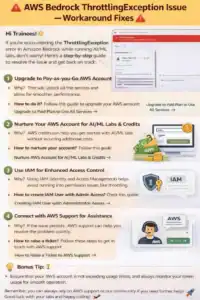
Fix 1: Switch to a Pay-as-You-Go AWS Account
Why this helps: Any account with a free tier and new status is at the minimum quota level available across all AWS services and in Bedrock as well. By switching to pay-as-you-go pricing, you unlock higher default quotas and become eligible for quick approval of any increases in requested quotas.
What will change after: As soon as you upgrade to a paid plan, your AWS account switches to standard quotas, which are much higher than those for free-tier accounts. Start running your lab after you have completed an upgrade; it will be enough to fix the problem for many students.
How to do it: 👉 Upgrade to Paid Plan to Use All Services
Fix 2: Take Care of Your AWS Account for AI/ML Labs & Credits
Why this helps: AWS provides credits for conducting labs related to AI/ML tasks. A properly nurtured AWS account, meaning verified billing, accepted service agreement, and applied credits, has better access to Bedrock quotas without paying out of pocket for your labs.
Common mistake to avoid: Many learners skip this step, start running labs immediately, and get confused because of throttling or charges. It takes only 10 minutes to nurture your AWS account properly and save yourself hours of troubleshooting in the future.
What will change after: AWS credits become visible in your AWS Billing Dashboard. They will cover the cost of your token usage in the labs and allow you to execute more workloads without any quota exhaustion due to cost controls.
How to nurture your account: 👉 Nurture AWS Account for AI/ML Labs & Credits
Fix 3: IAM for Better Access Control
Benefit of doing so: Executing Bedrock API commands from the root account or unconfigured users without proper permissions may lead to silent failures or permission errors. This would show as a ThrottlingException. Having your own IAM user with admin privileges guarantees that your credentials are properly set and that your requests are being processed by Bedrock.
Typical error to avoid: Do NOT use production or lab workload from root account. The root account is never intended for API usage and has no permission control features that IAM has.
The result after doing this: Your Bedrock API commands will be executed via IAM credentials. If a ThrottlingException occurred due to incorrect permissions, it will stop showing once you switch to IAM.
How to Create an IAM User with Admin Access: 👉 Creating IAM User with Administrator Access
Fix 4: Ask for a Higher Quota of Amazon Bedrock
Why is it effective? Despite having a paid account, the quotas for Bedrock are still too low. In order to use large prompts in your AI/ML labs and get multiple model calls, especially with RAG and agent chaining workflows, you have to ask for increased TPM and RPM limits via the AWS Service Quotas console. This is the most straightforward way to solve the problem of ThrottlingException.
How to do it:
- Go to AWS Console → type ‘Service Quotas’ in the top search bar
- Go to AWS Services → type ‘Amazon Bedrock’ in the top search bar
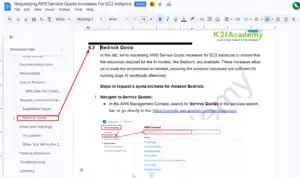
- Check out the list of quotas and choose the specific one that corresponds to your lab’s model (e.g., Anthropic Claude 3 Sonnet input tokens per minute)
- Click “Request quota increase.”
- Enter the higher quota number; asking for 100,000 TPM is enough for lab work
- Submit the request
What you can expect to happen: Most of the requests are processed in several hours. You will get a notification from AWS about the increased quota. After that, check your labs’ throttling again. The error should be solved now.
What to avoid: When asking for the increased quota, be sure to choose the same region that you are using in your labs, as there are separate quotas for each region.
Full lab guide: 👉 Requesting AWS Service Quota Increases
Fix 5: Switch Your AWS Region
Explanation: The AWS Bedrock quotas depend on the region you choose for your account. The most widely used AWS region is US East (North Virginia), or us-east-1, and therefore also the busiest. When you change regions, you automatically get another quota pool, which typically has more quota left without raising the limit.
Recommended other regions:
| Region Name | Region Code |
|---|---|
| US West (Oregon) | us-west-2 |
| US East (Ohio) | us-east-2 |
| EU (Ireland) | eu-west-1 |
Procedure of changing region:
Navigate to the top-right corner of the AWS Console → open the region dropdown → pick your region → go to Bedrock and redo the lab.

Common mistake to watch out for: Before changing region, make sure the particular model foundation you are working with is also available in the other region. All models are not available in all regions. This can be checked under Amazon Bedrock → Model Access in the AWS Console after changing regions.
Result after: Your Bedrock requests will be directed through the new region’s network. For most students, this will solve the problem of getting throttling errors right away without increasing the quota limit.
Fix 6: AWS Support Ticket
Why this helps: If you have exhausted all other five steps and the exception is still showing up or your quota increase request has been pending for more than 24 hours, opening a ticket with AWS Support is the quickest way out. AWS Support can manually process your request for increasing quotas, resolve hidden account-level flags, and find solutions to your problems that you cannot find from the console.
What should you include in your ticket:
- Your AWS Account ID
- Where the error is happening (region)
- Model that you are invoking (e.g., Claude 3 Sonnet)
- Error message
- Your existing request for quota increase and its status
What next? After you submit the ticket to AWS Support, they usually respond within a couple of hours under a basic plan and even quicker on a business/enterprise plan. They either process your request manually or solve some other account level problem related to throttling.
How to raise a support ticket: 👉 How to Raise a Ticket to AWS Support
Tips to Avoid ThrottlingException in the Future
Now that you have handled the current issue, here are some tips to help prevent it from happening again in the future:
1. Use Exponential Backoff with Retry Logic
In case you write Python scripts for your labs, wrap your Bedrock API requests with a retry logic loop. Whenever you face a throttling exception, wait a few seconds and then try again. The Boto3 library provides native support for this functionality by providing default retry configuration.
2. Make Your Prompts Short
Every single token in your prompt reduces your TPM quota. While working on your labs, try to keep your system prompts and user messages short. There will be enough time to extend them later once your TPM quota is increased.
3. Track Your Quota in Real-Time
Navigate AWS Console → CloudWatch → Metrics → AWS/Bedrock to track your token usage in real-time. Setting up a CloudWatch alarm that triggers when you exceed 80% of your TPM quota will give you a chance to avoid throttling.
4. Introduce a Small Delay Between Your Requests
If your lab sends multiple Bedrock requests in a loop, introduce a small delay time.sleep(1) between each call. This way, you will distribute your token consumption across multiple minutes rather than hit the TPM limit at once.
5. Request More Quotas Before You Run Out of Them
Do not wait until you encounter the ThrottlingException. Once your Bedrock environment is configured, go to Service Quotas and request more quota limits for all models you intend to use. It takes no time and costs nothing.
And once your quota is stable and your account is all set up, it is time to move on to the next step and start building your Bedrock workload. Check out our comprehensive AWS Generative AI labs → featuring RAG pipelines, agents, and guardrails.
Frequently Asked Questions
Q: Will changing the AWS region lead to loss of my data/settings?
No. S3 buckets, IAM users, and other global resources will be preserved. Changing region just alters where your Bedrock API calls are directed. You may have to enable access to models again in the new region under Bedrock → Model access.
Q: How much time does an AWS quota increase request take?
The request usually gets automatically approved in several hours. Sometimes AWS requires additional time for manual review, and then the request processing time can extend up to 2 business days. In case it has taken more than 24 hours, report a support ticket.
Q: Does upgrading my AWS account eliminate the throttling exception?
It will raise your default quotas substantially but does not eliminate all limits. In case of intensive lab experiments, you will have to increase your quotas manually anyway. Upgrading is the mandatory first step.
Q: Which AWS region to use for Bedrock labs?
US West (Oregon), us-west-2, is a good alternative to us-east-1 for Bedrock workloads. It has reliable model availability and lower congestion compared to N. Virginia.
Q: Am I likely to get a throttling exception even with my ongoing quota increase request?
Yes. The increase will go into effect only when AWS approves it. Meanwhile, you can change your region temporarily.
Summary
| Fix | What It Addresses |
|---|---|
| Pay-as-you-go Upgrade | Increases your default quotas |
| Credits Nurturing Account | Lowers your costs in lab |
| Create IAM User | Solves permission issues |
| Increase Quotas | Sets up your TPM/RPM quotas directly |
| Switch to AWS Region | Gives you access to a different quota pool immediately |
| AWS Support Contact | If all else fails |
Are you ready to move past error solving and create a production-ready solution? Create an Agentic AI Customer Service Agent on AWS Bedrock – a 5-lab tutorial series from prototype to production on AWS Bedrock.