



AI is revolutionizing the way companies interact with their customers, and by 2026, it is projected that more than 80% of businesses will have conversational AI in place. One of the most effective methods to create these tools is by developing an Azure chatbot with Azure Bot Service and Azure AI Services.
This tutorial will help you understand the concept of Azure Bot Service, the working of Azure chatbots, and guide you through the process of making a chatbot in Azure. Besides, we will discuss chatbot design, Azure AI collaborations, pricing, and practical chatbot scenarios.
If you are designing your first bot or the advanced solutions such as Azure OpenAI or RAG-based Chatbots, this guide will provide you with the necessary support throughout.

What Is Azure Bot Service?
Azure Bot Service is a platform hosted in the cloud that enables developers to create, launch, and handle smart chatbots large-scale. It is included in Microsoft’s Azure AI ecosystem and connects well with different AI services.
The Azure Bot Service (or Azure AI Bot Service) offers a full toolkit for creating chatbots.
Key Features:
- Multi-channel deployment (Microsoft Teams, Slack, Web, WhatsApp)
- Supports Bot Framework SDK (C#, Python, JavaScript)
- Built-in authentication and security
- Integration with Azure Cognitive Services
- Easy deployment via Azure Portal
In simple terms: Azure Bot Service acts as the brain + communication layer of your chatbot.
Azure Chatbot Architecture (How It Works)
A typical Azure chatbot architecture follows this flow:
User → Channel → Bot Service → AI Services → Response
Architecture Flow:
- User Input
- User interacts via Teams, website, or app
- Channel Layer
- Platforms like Teams/Web Chat send requests to bot
- Bot Service
- Handles logic, orchestration, and routing
- AI Layer
- Uses:
- Azure Cognitive Services
- Azure OpenAI (for GPT responses)
- Uses:
- Response Delivery
- Bot sends intelligent reply back to user
Key Azure Cognitive Services for Chatbots
Azure Cognitive Services provide the intelligence behind a cognitive services chatbot.
| Service | What It Does | Chatbot Use Case |
|---|---|---|
| Language (CLU) | Understand user intent | FAQ bots, support bots |
| Custom Question Answering | Knowledge base responses | QnA bots |
| Speech Services | Voice input/output | Voice assistants |
| Translator | Multi-language support | Global bots |
| Azure OpenAI | GPT-based responses | Smart conversational bots |
Check out: Azure Certification Path: Step-by-Step Guide
Responsible AI Considerations:
- Ensure transparency in bot responses
- Allow escalation to human agents
- Protect sensitive data
- Maintain fairness and reliability
Overview Of ChatBot
Azure Cognitive service is a set of pre-built AI tools. Azure Cognitive Service is grouped into 5 categories vision, knowledge, language, speech & search. We can integrate these Azure cognitive services with Azure Bot Service to create a Chatbot interface for our requirements.
Read More: About Azure AI Fundamentals Certification.
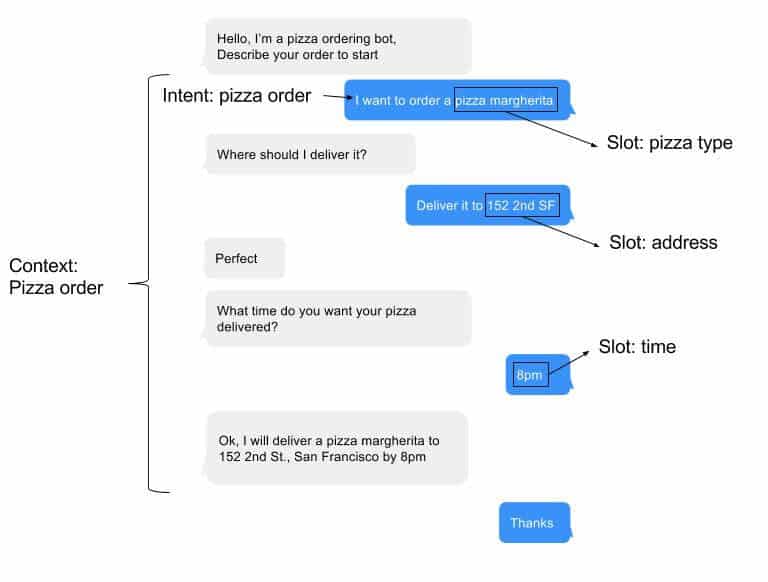
Conversational Artificial Intelligence is a solution that helps us to build a conversation between AI machines and humans. These machines are called Bots. Bots are used in various scenarios like customer support, reservation systems, digital assistants, online ordering, healthcare, etc.
We can interact with a bot in various ways:
- Webchat interfaces
- Emails
- Social Media Platforms
- Voice
Responsible AI Guidelines For Bots
- Being Transparent about the capabilities of the bot service created.
- If necessary the Bot service is capable of transmitting the conversation to a human. (in case of refund, or complaints)
- Ensure the Bot is reliable.
- Confidential and secret data should be secured.
- Handling data securely.
- Bot service must fulfill the accessibility standards.
Check out: Overview of Azure Machine Learning Studio
Pre-requisites
- Before Creating a QNA in the Language studio you need to Create a Language resource Service in the Azure Portal that supports Custom Question Answering.


Steps To Create A Qna Chatbot Using Language Studio
- Visit the Azure Language Studio using the below URL and sign in with your Azure subscription. https://language.cognitive.azure.com/

- After Signing into Azure Subscription it will ask to Provide some Details like Azure Subscription . Resource type , and Language Resource name. provide the details Accordingly and You will be Signed in to Language studio along with Language resource you created.

- You can either Directly click on Understand Questions and Conversional Language or in the Create new Section selecting the Qna.

- Click on Custom Question Answering .

- Now that we have Selected Custom Question Answering , we need to Create a Project click on Create new Project.

- Choose the Language settings , Select the Requirements Accordingly.

- Now Under the Basic Information Enter the Name for the Project , and Provide description and an Default answer which will be Used by the Bot if the Question that you ask not exist in the Data you Provided or Question that is not related to data provided.

- Click on Add Source.

- Under the Add source section you can Import the Data either using Url or Files , here i am providing URLs as the source for the Data. Add Data and Click on Add all.

- After Importing the data if you go to edit Knowledge base section if you click on the URLs or Files provided as data it will display the Questions and Answers, in how many frames questions will be formed based on data provided.
- if you Want to add a extra question Pair click on + Symbol and You can add the Question and Answer that you are expecting to be returned. Ans click on Save to the Question pair.

- Click on Test to test the Data Provided.

- Ask a Question to test it Will Return the Answers if the Solution Exist in the Provided data else it will return a default msg as we provided while creating the Project.

- Now to Create a Bot you need to Deploy knowledge base, go to Deploy Knowledge Base and Click on Deploy.

- Knowledge Base has been successfully create now to test it you Either use sdk by Getting Prediction Url or Click on Create directly to Test in the Azure Portal. Click on Create Bot.

- It will Redirect you to Azure Portal to Provide deployment Details, Select the Azure Subscription, Resource group Name, and In which location Resource group is Created.

- Provide the Bot handle name and Select the Pricing Tier(Select Pricing tier according to usage and Requirements) and select Microsoft APP-ID. Click on Next.

- In the Web App Section Provide a name to the Bot and select a Language and Creation type click on Create new app service plan.

- Now you need to Provide Language Resource Key value here, go to Language resource that you created initially for using in Language studio and Copy the Key value and Provide here.
- Click on Review and Create and Click on Create. it takes few minutes to deploy the Bot.

- It takes few minutes to Deploy the Bot, Go to Bot when it is created, and To test it Click on Test in webchat.

- You can test the Bot, You can a Question it will return the Answer.

- If the Question you ask that is not related or exist in the Data you provide, it will return a error msg that you provided While Creating project in the Language studio.


Note: QnA maker is an Azure Cognitive service. Check what Azure Cognitive Services are.
Azure OpenAI Chatbot vs Traditional Bot Service
| Feature | Traditional Bot | Azure OpenAI Chatbot |
|---|---|---|
| Type | Rule-based / intent-based | Generative AI (GPT) |
| Use Case | Structured workflows | Open-ended conversations |
| Flexibility | Limited | Highly flexible |
| Learning | Manual training | Pre-trained models |
Best practice: Use hybrid architecture
(Bot Service + Azure OpenAI)
Azure RAG Chatbot: Building AI-Powered Bots With Your Own Data
A RAG (Retrieval-Augmented Generation) chatbot combines:
- Data retrieval
- AI generation
How it works:
- Store data in Azure Blob / DB
- Retrieve via Azure AI Search
- Generate answer using Azure OpenAI
Benefits:
- More accurate responses
- Reduced hallucination
- Works with private data
Azure Chatbot Examples & Use Cases
1. AI Chatbot for Customer Service
Handles FAQs, returns, order tracking → reduces support cost
2. IT Helpdesk Bot
Automates password reset & ticketing
3. Healthcare Assistant
Schedules appointments, symptom guidance
4. E-commerce Bot
Product recommendations + checkout help
5. HR Bot
Onboarding + leave management
6. Education Bot
Course recommendations + quizzes
Azure Chatbot Pricing
| Service | Free Tier | Paid Tier | Notes |
|---|---|---|---|
| Bot Service | 10k msgs/month | $0.50 per 1k msgs | Core chatbot |
| Cognitive Services | Limited free | Pay-as-you-go | NLP features |
| Azure OpenAI | No free | Usage-based | GPT pricing |
Estimated Costs:
- Small Bot (<50k msgs): $20–40/month
- Enterprise Bot: $300–800/month
Tip: Start with free tier during development.
Conclusion
Microsoft Azure provides a powerful platform for creating intelligent chatbots using Cognitive Services and the Azure Bot Service. In addition, these tools enable developers to build chatbots with advanced AI capabilities like natural language understanding, speech recognition, and sentiment analysis.
Furthermore, the Azure Bot Service streamlines chatbot development and deployment across multiple channels, including websites and messaging platforms. With this in mind, its robust scalability, security, and integration features allow Azure chatbots to enhance customer interactions, automate workflows, and provide personalized support. Therefore, Azure is an ideal choice for businesses looking to implement cost-effective and impactful conversational AI solutions.
Frequently Asked Questions
What is Azure Bot Service?
Azure Bot Service is a cloud platform by Microsoft for building and deploying intelligent chatbots. It integrates with Azure Cognitive Services and supports multi-channel deployment like Teams, web apps, and messaging platforms.
How do I create a chatbot in Azure?
You can create a chatbot using Azure Portal (no-code) or Bot Framework SDK. Start by creating a bot resource, configure services, and test using Web Chat before deploying.
Is Azure Bot Service free?
Yes, Azure Bot Service offers a free tier with 10,000 messages per month. Additional usage is billed based on message volume and connected AI services.
What is the difference between Azure Bot Service and Azure OpenAI chatbot?
Azure Bot Service is used for structured bots, while Azure OpenAI enables GPT-powered conversations. Many solutions combine both for better performance.
What are Azure Cognitive Services for chatbots?
They provide AI capabilities like language understanding, speech, translation, and QnA features to make chatbots smarter and more interactive.
What is a RAG chatbot in Azure?
A RAG chatbot retrieves relevant data using Azure AI Search and generates responses using Azure OpenAI, ensuring accurate and context-aware answers.
How much does an Azure chatbot cost?
Small bots cost around $20–40/month, while enterprise bots can cost $300–800/month depending on usage and services.
Can I deploy an Azure chatbot to Microsoft Teams?
Yes, Azure Bot Service supports Microsoft Teams as a built-in channel, allowing seamless deployment without additional infrastructure.
Related/References:
Next Task: Enhance Your Azure AI/ML Skills