




This blog will will give you a summary of Azure job focused program. It will cover entire hands on labs offered by program along with the projects.
The labs and projects summarised here will be provided with steps to complete inside our program of Azure job oriented course. It will help you to prepare on the basis of current job market and make you tackle the obstacles faced while applying for job in field of Azure.
Contents:
- Create free Microsoft Azure account
- Switch to pay as you go account
- Create billing alert using Azure portal
- Requesting Azure Service Quota Increases
- Install Visual Studio Code, Python & GIT on VM
- Create & Connect Windows VM
- Create Linux VM
- Install IIS Server
- Deploy & Test Virtual Machine Sets
- Generate SSH Keys
1.3 Azure Governance & Identity Labs
- Implement Azure Policy
- Create Microsoft Entra ID Company Branding & MFA
- Create Microsoft Entra ID Sync Using Entra Connect
- Create and Configure Role Based Access in Azure
- Create and Update Custom RBAC Roles
- Create Resource Group, Virtual Network & VM
- Create Network Security Group
- Create Azure Firewall with DDoS Protection
- Create Azure Private DNS
- High Availability with Azure Load Balancer
- Deploy Azure App Service & Traffic Manager
- Create an Application Gateway
- Filter Network Traffic using (NSG & ASG)
- Create an Azure Front Door
- Create Container, Manage Storage Account
- Create a Managed Disk & Managed Data Disk
- Disk Migration from on Premises server to Azure
- Azure File Share
- Create Blob Lifecycle Management
1.7 Azure Monitoring & Backup Labs
- Azure Monitoring using Log Analytics
- Azure Network Watcher
- Backup of Azure VM into Azure Backup Vault
- Backup of On-premise Server in Azure Backup Vault
- Exploring Monitoring Capabilities of VMMS
1.8 Containers & Serverless Labs
- Create Web Apps with two Deployment Slots
- Implement Azure Container Instance (ACI)
- AKS cluster creation and accessing it
- Deploy Azure Kubernetes Services (AKS) Cluster
- Create VM using PowerShell
- Create an Azure Managed Disk by Azure PowerShell
- Create a Virtual Machine using Azure CLI
- Create & Deploy ARM templates using Azure Portal
- Authenticate to Azure Tenant via Powershell
- Create Free Microsoft Azure DevOps Account
- Enable Parallelism in Azure DevOps
- Agile Plan & Portfolio Management by Azure Boards
- Create & Connect to Windows Virtual Machine
1.11 Azure Pipelines & CI Labs
- Configure Agent Pools & Understand Pipeline
- Continuous Integration with Azure Pipelines
- Integrating Azure Key Vault with Azure DevOps
- Implement GitHub Actions CI/CD
- Package Management with Azure Artifacts
1.12 Release & Deployment Labs
- Control Deployments using Release Gates
- Configuring Pipelines as Code with YAML
- Setting up and Running Functional Tests
- Enable Dynamic Configuration & Feature Flags
1.13 Infrastructure as Code Labs
1.14DevSecOps & Compliance Labs
- Deploying Docker containers to App Service
- Monitor App Performance with AZ Load Testing
- Security & Compliance in an AZ DevOps Pipeline
- Integrate AZ DevOps Security with SonarCloud
- Deployment of 3 tier Architecture in Azure
- Containerize and deploy a Java app to Azure
- Automating Infrastructure deployment using terraform and Azure pipeline
- Deploying multi-container application to AKS
- Migration of resources from On-Premise to Azure
- Migration of resources across Azure regions
- Entra ID (Azure Active Directory) Synchronization with On-Premise Active Directory using Entra Connect (AD Connect)
- Containerized Application Using Azure Kubernetes Service
- Site-to-Site Connection using Azure Portal
- Create WordPress Site on Azure Portal
- Host your Portfolio via Azure Storage (Static Website Hosting)
- Deploy Netflix Clone Application on Kubernetes


Download Azure Job Oriented Brochure

Hands on Lab:
1.1 Azure Basics Labs
1. Register For Azure Free Trial Account
When stepping in cloud, first task you all should do is create a free trial account in Microsoft Azure (Microsoft offers $200 as free credit for one month)
Microsoft Azure is one of the top choices for any organization due to its freedom to build, manage, and deploy applications. Here, we will look at how to register for the Microsoft Azure FREE Trial Account, click here.
Note: Get this first step by step activity guide absolutely FREE from here
2. Switch to Pay as you go account
The pay-as-you-go subscription model is a pricing strategy where customers pay only for the resources they use. This is in contrast to traditional subscription models, where customers are charged a fixed monthly or annual fee regardless of their usage.
In this lab, we will see how we can switch our existing subscription to pay as you go, where if your free trial subscription is out of limit, you can switch to pay as you go subscription and pay the charges for the resources you are going to use.
The PAYG model is becoming increasingly popular for a number of reasons, few of them are given below:
- It gives customers more flexibility and control over their spending.
- Customers can scale their usage up or down as needed, and they only pay for what they use.
- The PAYG model can help businesses to reduce their upfront costs.
- Businesses do not need to commit to a long-term contract or purchase a large upfront license fee.
3. Create billing alert using Azure portal
Azure billing alerts allow you to monitor your Azure spending and receive notifications when your spending exceeds a certain threshold. This can help you to avoid unexpected costs and stay within your budget.
In this lab, we will have clear objective of setting a budget. Once that budget is reached, it will trigger the alert and notify you by either sending notification on app or by sending you sms or via email whichever you have set for the notification.
Billing alerts are based on the following concepts:
- Threshold: A threshold is a value that you specify. When your Azure spending exceeds the threshold, the alert will be triggered.
- Frequency: The frequency is how often the alert condition is evaluated. You can choose to evaluate the alert condition every hour, day, week, or month.
- Alert actions: Alert actions are the steps that are taken when the alert is triggered. You can choose to send an email notification, create an Azure Monitor alert, or call a webhook
4. Requesting Azure Service Quota Increases
Azure quotas are limits on the amount of resources you can consume within your subscription for a given service or region. These limits are in place to manage capacity, protect against accidental overspending, and ensure fair allocation of resources.
While most standard usage fits within these limits, you might occasionally need to request an increase for specific resources like virtual machine vCPUs, storage, or network capacity to support larger deployments or increased workloads.

In this lab, we will see how we can request these essential quota increases directly from the Azure portal. We’ll learn the process for submitting an adjustment request for quotas that are directly adjustable within the portal, such as compute resources.
For services where direct adjustment isn’t an option, we will also demonstrate how to raise a formal support request to initiate a quota increase, ensuring you can scale your Azure resources as per your project’s demands.
5. Install Visual Studio Code, Python & GIT on VM
Modern cloud development heavily relies on having the right tools configured on your local machine or a dedicated development environment, such as a virtual machine. These tools empower developers to write, test, and deploy code efficiently to cloud platforms like Azure.
Establishing a standardized and ready-to-use development setup is crucial for streamlined workflows and productivity, especially when collaborating on projects that involve cloud services, scripting, and version control.
In this lab, we will see how we can prepare a virtual machine by installing essential development tools required for working with Azure. This involves:
- Installing Visual Studio Code, a popular and versatile code editor, onto our virtual machine.
- Installing Python, along with crucial modules and packages necessary for various Azure-related labs, especially those involving scripting and Azure AI services.
- Installing Git for robust version control of our code.
- Installing the Azure CLI to enable powerful command-line interaction and management of our Azure resources directly from within the VM environment.
1.2 Azure Compute Labs
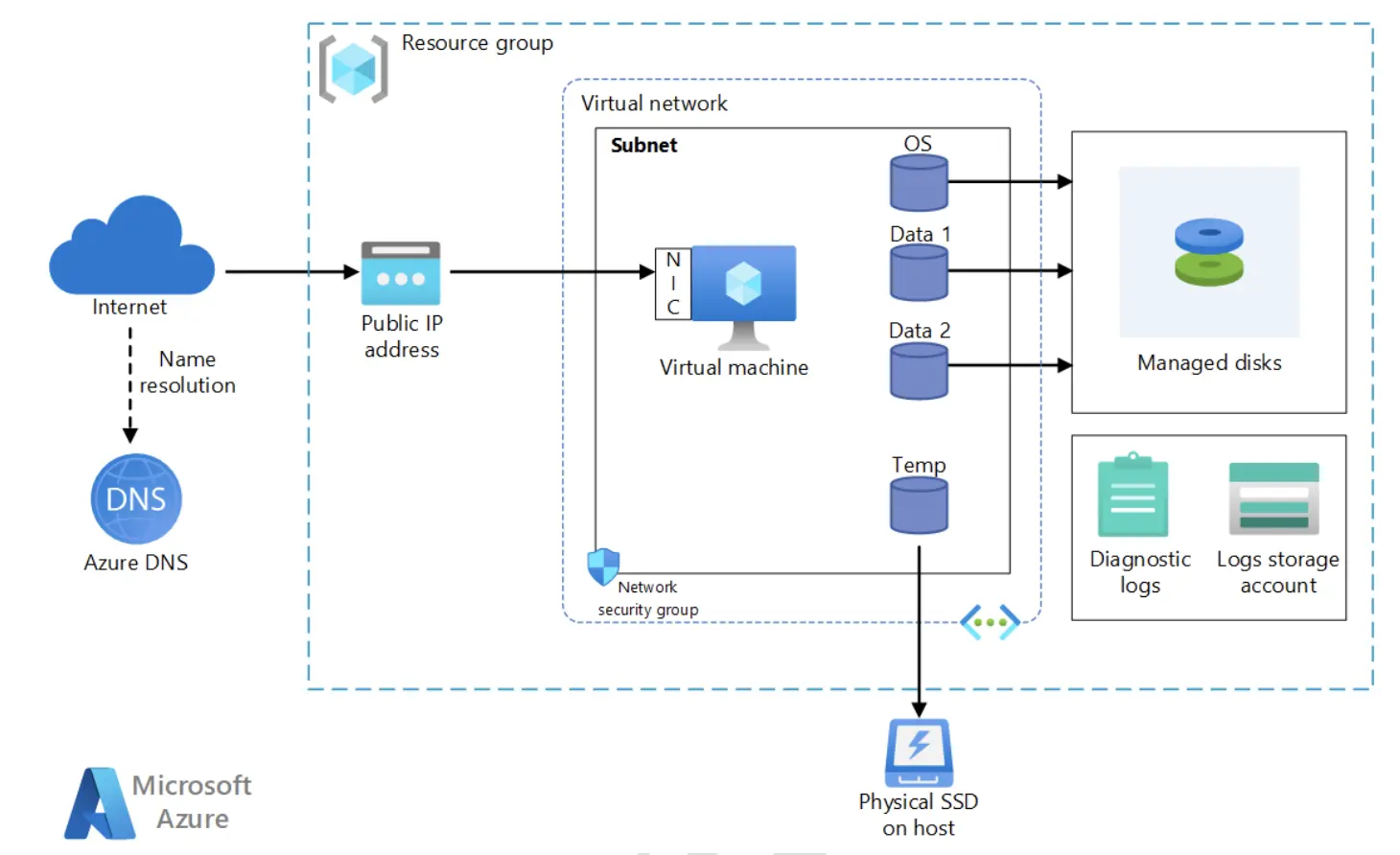
1. Create & Connect Windows VM
By leveraging Azure Virtual Machines, you can quickly provision and deploy Windows-based virtual machines without the need for upfront hardware investment or infrastructure management. Azure VMs are a core Infrastructure as a Service (IaaS) offering that gives you full control over the operating system, storage, and networking configuration.
In this lab, we will create a Windows Virtual Machine using the Azure Portal. We will configure the VM settings including subscription, resource group, region, size, and administrator credentials. Once the VM is deployed, we will connect to it using Remote Desktop Protocol (RDP) to verify successful provisioning and explore the VM dashboard. This lab builds the foundation for working with Azure compute resources throughout the course.
2. Create Linux VM
Azure Virtual Machines support a wide range of Linux distributions including Ubuntu, Red Hat Enterprise Linux, and SUSE. Linux VMs in Azure are widely used for running open-source workloads, web servers, development environments, and automation scripts. They offer flexible, scalable compute capacity with full control over the operating system and installed software.
In this lab, we will create a Linux Virtual Machine using the Azure Portal by selecting a Ubuntu image. We will configure authentication using SSH public key credentials instead of a password, which is the recommended and more secure approach for Linux VMs. Once the VM is deployed, we will connect to it using SSH to verify access and explore the Linux environment. This lab covers the key differences between Windows and Linux VM configuration and access methods in Azure.
Related Readings: How to create and connect Ubuntu Virtual Machine in Azure
3. Install IIS Server
Internet Information Services (IIS) is Microsoft’s web server platform built into Windows Server. It is commonly used to host websites, web applications, and REST APIs on Windows-based virtual machines. Installing IIS on an Azure VM is a foundational step for testing web hosting scenarios, demonstrating load balancing, and validating network security configurations within a cloud environment.
In this lab, we will connect to a Windows Virtual Machine provisioned in Azure and install the IIS web server role using Server Manager or PowerShell commands. Once installed, we will verify that the default IIS welcome page is accessible through the VM’s public IP address from a web browser. This confirms that the web server is operational and that the network security group rules are correctly configured to allow inbound HTTP traffic on port 80.
4. Deploy & Test Virtual Machine Scale Sets
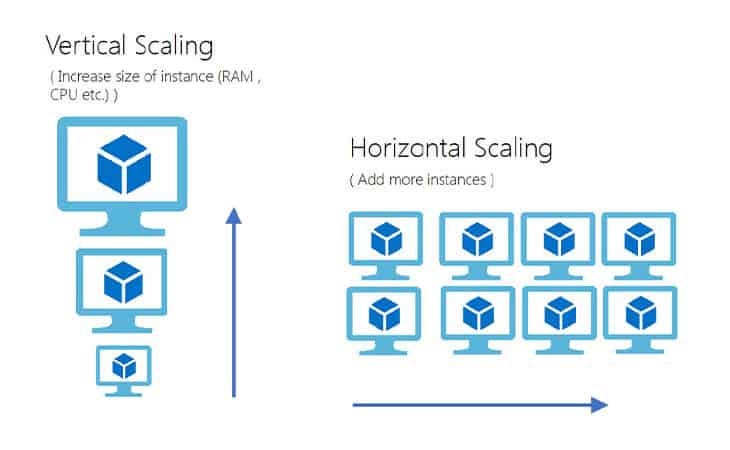
A Virtual Machine Scale Set (VMSS) is an Azure compute resource that allows you to create and manage a group of identical, load-balanced virtual machines. VMSS enables automatic scaling based on demand, the number of VM instances can increase or decrease automatically based on predefined rules such as CPU utilisation, network traffic, or a custom schedule. This makes it ideal for handling variable workloads in production environments.
In this lab, we will create a Virtual Machine Scale Set in the Azure Portal and configure its autoscaling policies. We will then simulate load to trigger the scale-out rules and verify that the number of VM instances increases in response to the demand. Finally, we will confirm that the scale-in behaviour reduces the instance count once the load subsides, validating the full autoscaling lifecycle.
Related Readings:What is Virtual Machine Scale Set (VMSS) in Microsoft Azure?
5. Generate SSH Keys
SSH (Secure Shell) key pairs provide a more secure alternative to password-based authentication for connecting to Linux Virtual Machines. An SSH key pair consists of a public key stored on the VM and a private key kept securely on the local machine. Azure supports SSH key generation natively through the Azure Portal, Azure CLI, and third-party tools such as ssh-keygen, making it straightforward to set up secure access during VM provisioning.
In this lab, we will generate an SSH key pair using the Azure Portal during the VM creation process. We will download the private key file and use it to establish a secure SSH connection to a Linux VM. We will also explore how to generate SSH keys using the Azure CLI and how to reuse existing public keys across multiple VM deployments, ensuring consistent and secure access management for Linux workloads in Azure.
1.3 Azure Governance & Identity Labs
1. Implement Azure Policy
Azure Policy is a governance service that allows organizations to enforce rules and evaluate compliance across Azure resources at scale. Policies can be applied at the management group, subscription, or resource group level, ensuring that all resources meet organizational standards for security, naming conventions, allowed regions, permitted resource types, and cost controls. Azure Policy integrates with Microsoft Defender for Cloud to provide a unified compliance posture view.
In this lab, we will create and assign a built-in Azure Policy to enforce a specific governance rule, such as restricting resource deployments to approved Azure regions or requiring specific tags on all resources. We will observe how the policy evaluates existing resources and prevents non-compliant deployments from being created. Finally, we will review the compliance dashboard to understand how Azure Policy reports on the overall compliance state of the subscription.
2. Microsoft Entra ID Company Branding & MFA
Microsoft Entra ID is Microsoft’s cloud-based identity and access management service that enables organizations to manage user identities and enforce authentication policies. Company branding in Microsoft Entra ID allows organizations to customize the sign-in experience with their own logo, background images, and messaging. Multi-Factor Authentication (MFA) adds an additional layer of security by requiring users to verify their identity using a second factor such as a mobile app, SMS, or hardware token.
In this lab, we will configure custom company branding in the Microsoft Entra ID portal to personalize the sign-in page for the organization. We will then enable Multi-Factor Authentication for user accounts and configure the allowed verification methods. Finally, we will test the sign-in experience to confirm that branding is applied correctly and MFA prompts appear during authentication, strengthening identity security across the tenant.
Related readings: Microsoft Entra ID
3. Microsoft Entra ID Sync Using Entra Connect
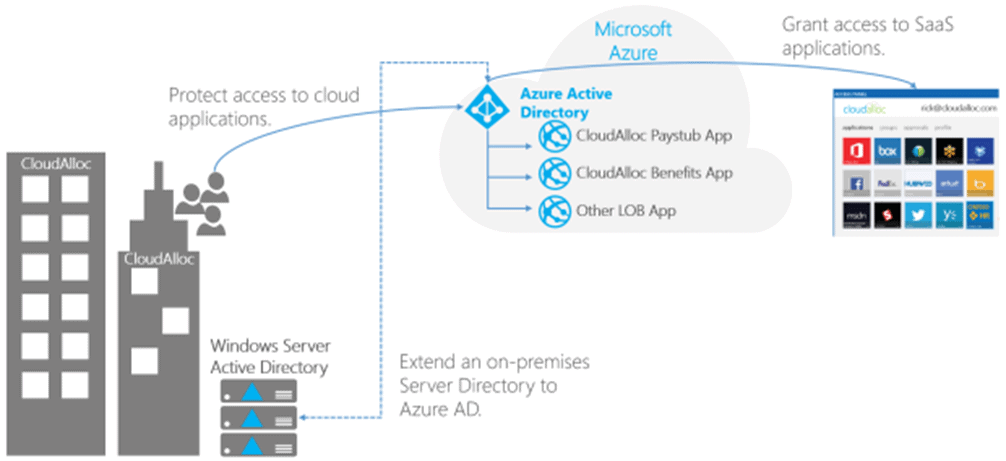
Microsoft Entra Connect is the tool that synchronizes identities from an on-premises Active Directory environment to Microsoft Entra ID in the cloud. This synchronization enables users to use the same credentials for both on-premises and cloud-based resources, supporting hybrid identity scenarios. Entra Connect supports multiple synchronization options including Password Hash Synchronization (PHS), Pass-Through Authentication (PTA), and Federation with Active Directory Federation Services (AD FS).
In this lab, we will simulate an on-premises Active Directory environment and install Microsoft Entra Connect on it. We will configure the synchronization settings and run the initial sync to replicate user accounts and groups from on-premises to Microsoft Entra ID. Once synchronization is complete, we will verify that the on-premises users appear correctly in the Microsoft Entra ID portal, confirming successful hybrid identity setup.
4. Create & Configure Role Based Access in Azure
Role-Based Access Control (RBAC) in Azure is a security model that restricts access to Azure resources based on a user’s job role within the organization. RBAC uses role assignments to grant specific permissions to users, groups, service principals, or managed identities at a defined scope — whether at the management group, subscription, resource group, or individual resource level. Built-in roles such as Owner, Contributor, and Reader cover most common access scenarios.
In this lab, we will assign built-in Azure RBAC roles to users and groups within a Microsoft Entra ID tenant. We will demonstrate the difference in access levels by logging in as different users and testing what actions are permitted or restricted based on their assigned role. We will apply roles at both the subscription and resource group scope to understand how scope inheritance affects permissions across the Azure resource hierarchy.
5. Create and Update Custom RBAC Roles
While Azure provides a comprehensive set of built-in RBAC roles, some organizations require fine-grained access control that built-in roles do not offer. Custom RBAC roles allow administrators to define exactly which actions are permitted or denied for a specific set of resources, going beyond what built-in roles provide. Custom roles are defined using JSON and can be created and managed through the Azure Portal, Azure CLI, or Azure PowerShell.
In this lab, we will create a custom RBAC role with a specific set of permissions tailored to a particular job function — for example, a role that allows users to start and stop virtual machines but not delete or create them. We will define the role using a JSON template, publish it to the subscription, and assign it to a user. Finally, we will verify that the assigned user can perform only the actions permitted by the custom role, confirming that the access controls are working as intended.
1.4 Azure Networking Labs
1. Create Resource Group, Virtual Network, Subnet and Virtual Machine
To deploy any Azure resource, you must first have a Resource Group, a logical container for organizing and managing related Azure resources. When networking is involved, this builds further into creating a Virtual Network and one or more Subnets that define the IP address space and segment traffic for resources deployed within them.
In this lab, we will work across two parts. In Part 1, we will create a Resource Group, a Virtual Network, and a Subnet in the Azure Portal, establishing the foundational networking environment. In Part 2, we will deploy a Virtual Machine inside the Virtual Network and subnet created in Part 1, verifying that the VM receives a private IP address within the configured address range and is reachable within the network. This lab establishes the core Azure networking building blocks used throughout the course.
2. Create Network Security Group
A Network Security Group (NSG) is a fundamental Azure networking security feature that acts as a virtual firewall for Azure resources. NSGs contain security rules that filter inbound and outbound network traffic based on source and destination IP addresses, ports, and protocols. They can be associated with subnets or individual network interface cards (NICs) to control traffic flow at different levels of granularity within a Virtual Network.
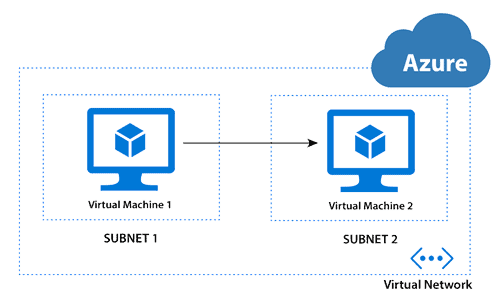
In this lab, we will create a Network Security Group in the Azure Portal and configure inbound and outbound security rules to control access to a virtual machine. We will define rules to allow HTTP (port 80) and RDP (port 3389) traffic while blocking all other inbound traffic by default. After associating the NSG with the VM’s subnet, we will test the rules by attempting to access the VM through allowed and blocked ports, validating that the NSG is correctly enforcing the defined traffic policies.
3. Create Azure Firewall with DDoS Protection
Azure Firewall is a cloud-native, stateful network security service that provides centralized control and visibility over network traffic across Azure Virtual Networks. It supports application and network-level filtering rules, threat intelligence-based filtering, and full packet inspection. Azure DDoS Protection adds a dedicated layer of defense against Distributed Denial of Service attacks, automatically monitoring and mitigating volumetric, protocol, and resource-layer attacks targeting Azure public endpoints.
In this lab, we will deploy an Azure Firewall within a dedicated hub Virtual Network and configure application and network rule collections to control outbound and inbound traffic. We will enable Azure DDoS Protection on the Virtual Network to protect against volumetric network attacks. We will then configure route tables to direct traffic through the Azure Firewall and test that the firewall rules are correctly allowing and blocking traffic as defined, confirming end-to-end network security enforcement with DDoS protection in place.
Related Readings: Virtual Networks In Microsoft Azure
4. Create Azure Private DNS
Azure Private DNS is a service that provides reliable and secure DNS name resolution for resources within Azure Virtual Networks. It allows organizations to use custom domain names instead of Azure-provided names, and ensures that DNS queries resolve internally within the virtual network without being exposed to the public internet. Private DNS zones support automatic registration of VM DNS records and allow for split-horizon DNS configurations.
In this lab, we will create a Private DNS Zone in Azure and link it to a Virtual Network. We will then create a Virtual Machine and register its private IP address as an A record in the DNS zone. Once configured, we will connect to another VM within the same Virtual Network and use the custom domain name to ping the first VM, verifying that DNS resolution is working correctly through the private zone rather than relying on IP addresses for internal communication.
1.5 Azure Load balancer Labs
1. High Availability with Azure Load Balancer
High Availability with Azure Load Balancer enables you to distribute incoming network traffic across multiple virtual machines (VMs) to ensure application reliability and scalability. By balancing the load, it prevents any single VM from becoming a bottleneck or point of failure, thus maintaining high availability for your services.
Here’s what you need to know about Azure Load Balancer:
- Purpose and Function: Distributes network traffic to healthy VMs for high availability.
- Creating a Virtual Network: Set up the network to host your VMs and load balancer.
- Creating Load Balancer: Configure frontend IP, backend pools, health probes, and rules.
- Creating Virtual Machines: Deploy and configure VMs behind the load balancer.
- Installing IIS: Set up a web server on VMs to test load balancing.
- Testing Load Balancer: Verify traffic is evenly distributed across VMs.

In this lab, you will create a virtual network, configure a load balancer, deploy VMs within these Vnets with IIS server installed on VMS, and test load balancing by accesing the web application running on VMs to ensure high availability.
2. Deploy Azure App Service & Traffic Manager
Azure App Service is a fully managed platform for building, deploying, and scaling web applications, mobile apps, and REST APIs. It offers a broad range of capabilities that enable you to quickly create and manage applications, without the need to set up or maintain infrastructure.
Within this lab we will go little advanced from our frontdoor lab. Here we will use a VM to setup visual studio and also create 2 webapps parallely. Once we have resources ready, we will push the deployment from Visual studio to Webapps and access them with Traffic manager which will be loadbalancing the traffic route.
Adding up Azure app service with Azure traffic manager provides better functionality of managing traffic and equally dividing it for efficient traffic management.
3. Create an Application Gateway
An Application Gateway in Azure is a web traffic load balancer that enables you to manage traffic to your web applications. It operates at the application layer (OSI Layer 7) and provides features like SSL termination, URL-based routing, and web application firewall.
Here’s what you need to know about Application Gateway:
- Purpose and Function: Distributes incoming web traffic based on URL, session affinity, or other routing rules.
- Configure Frontend IP: Assigns public or private IPs to receive client requests.
- Create Backend Pool: Groups backend servers or VMs that serve the application.
- Frontend & Backend Configuration: Set rules, listeners, and probes to control traffic flow.
- Add Backend Servers: Associate servers or VMs to the backend pool.
- Testing: Validate traffic routing and gateway functionality.
In this lab, you will create an Application Gateway, configure its frontend IP and backend pool, add backend servers, and test the gateway to ensure proper web traffic distribution.
Related Readings: Learn Azure Load Balancer, Front Door & Application Gateway
4. Filter Network Traffic using (NSG & ASG)
A Network Security Group (NSG) in Azure is a critical security feature used to filter inbound and outbound traffic to Azure resources within a virtual network. NSGs contain security rules that allow or deny traffic based on source, destination, port, and protocol.
Here’s what you need to know about Network Security Groups:
- Purpose and Function: Control network traffic to protect resources and enforce security policies.
- Application Security Groups: Group virtual machines for simplified management of security rules.
- NSG Creation and Association: Apply NSGs to subnets or individual network interfaces for granular control.
- Security Rules: Define custom allow or deny rules for traffic filtering.
In this lab, we will create virtual networks and application security groups, configure network security groups with specific security rules, and associate them with subnets and virtual machines to control network traffic effectively.
5. Create an Azure Front Door
Azure Front Door is a modern, cloud-native global application delivery network that provides fast, secure, and highly available entry for web applications. It combines the capabilities of a global HTTP load balancer, content delivery network (CDN), and web application firewall (WAF) in a single unified service. Azure Front Door routes user traffic to the fastest and most available backend origin, improving both performance and resilience for globally distributed applications.

In this lab, we will create two Azure Web Apps hosting a sample web application as backend origins. We will configure an Azure Front Door profile, define an origin group pointing to both web apps, and set up routing rules to distribute traffic between them. We will then test the failover behaviour by stopping one web app and refreshing the Front Door URL to confirm that traffic is automatically redirected to the remaining healthy origin, demonstrating Azure Front Door’s high availability and intelligent routing capabilities.
1.6 Azure Storage Labs
1. Create Container, Manage Storage Account
An Azure Storage Account provides a secure, scalable, and durable platform to store data objects like blobs, files, queues, and tables. It enables cloud applications to store and retrieve data efficiently.
Here’s what you need to know about Azure Storage Accounts:
- Purpose and Function: Centralized storage for unstructured and structured data.
- Types of Storage: Blob, File, Queue, Table storage options.
- Containers and Blobs: Containers organize blobs (files) within the storage account.
- Access and Security: Manage access via shared keys, SAS tokens, and Azure AD.

In this lab, you will create a storage account, set up a storage container, and upload blobs to the container, enabling you to manage and access unstructured data in Azure
2. Create a Managed Disk & Managed Data Disk
Azure Managed Disks are the recommended disk storage solution for Azure Virtual Machines. Unlike unmanaged disks, managed disks are fully handled by Azure Microsoft manages storage account creation, replication, and availability automatically. Managed disks support a range of performance tiers including Standard HDD, Standard SSD, Premium SSD, and Ultra Disk, allowing you to match storage performance to your workload requirements.
In this lab, we will create a Windows Virtual Machine in Azure with a managed OS disk. We will then create and attach a separate managed data disk to the VM to provide additional storage capacity. After connecting to the VM via RDP, we will use Disk Management in Windows to initialize, partition, and format the new data disk, making it available as a usable drive. This lab demonstrates how to expand VM storage using Azure Managed Disks and how to configure newly attached disks within the operating system.
3. Disk Migration From on Premises Server to AZ
Migrating on-premises server disks to Azure enables organizations to move existing workloads to the cloud while preserving data and configurations. Azure supports disk upload workflows that allow virtual hard disks (VHDs) from on-premises servers to be transferred directly to Azure Managed Disks. This approach is commonly used as part of a lift-and-shift migration strategy where workloads need to be moved to Azure with minimal changes to the existing environment.
In this lab, we will simulate a disk migration from an on-premises environment to Azure. We will prepare a virtual hard disk (VHD) from an on-premises server and upload it to an Azure Storage Account. We will then convert the uploaded VHD into an Azure Managed Disk and use it to create a new Azure Virtual Machine, verifying that the migrated disk is functioning correctly in the cloud. This process highlights the key steps involved in migrating on-premises workloads to Azure using disk-based migration.
4. Azure File Share
An Azure file share is a fully managed file storage solution that provides a secure and scalable way to store and share files in the cloud. Azure file shares are accessible via the industry-standard SMB and NFS protocols, making them compatible with a wide range of applications.
In this lab, we will use Azure File Share to create a shared network folder in the cloud, just like you’d have on a local office network, but accessible from anywhere. Here, we will start by creating a virtual machine. Then, we will set up a storage account, which is like a big container for our data.
Within that storage account, we’ll create the actual Azure File Share. Finally, we will connect this file share to our virtual machine using a PowerShell script, making it appear as a normal drive on the VM. This way, multiple virtual machines or even on-premises computers can easily access and share files from one central, cloud-based location, making file management much simpler and more accessible.
5. Create Blob lifecycle management
To improve application performance, consider using Azure Blob Storage, Azure CDN, and Azure Front Door for caching and fast content delivery across the globe.
Blob lifecycle management is a powerful tool for managing the lifecycle of your blobs in Azure Blob Storage. It allows you to automatically move blobs to different storage tiers based on their age or access patterns.
In this lab, we will prepare a couple of storage accounts by enabling features like versioning and change feed, which are important for tracking changes and allowing replication. Then, we configure lifecycle management policies to automatically move our older, less-used data to cheaper storage tiers or even delete it after a set time, saving costs.
further, we will set up blob object replication to automatically copy our blobs from one storage container to another in a different account, ensuring data redundancy and helping with disaster recovery. Finally, we verify that when a file is added to the source, it automatically appears in the destination, confirming our setup is working.
Blob lifecycle management is a feature of Azure Blob Storage that allows you to define rules for how blobs are moved between different storage tiers. These tiers have different costs and performance characteristics.
- Hot tier: The hot tier is the most expensive tier, but it provides the best performance.
- Cool tier: The cool tier is less expensive than the hot tier, but it has slightly lower performance.
- Archive tier: The archive tier is the least expensive tier, but it has the lowest performance.
1.7 Azure Monitoring & Backup Labs
1. Azure Monitoring Using Log Analytics
Azure Monitoring using Log Analytics is a comprehensive monitoring solution provided by Microsoft Azure. It enables you to collect, analyze, and gain insights from logs and metrics generated by various Azure resources and applications.
Log Analytics is a central repository for storing and analyzing monitoring data, allowing you to monitor the health, performance, and availability of your Azure resources.
Here are the key components and features of Azure Monitoring using Log Analytics:
- Log Analytics Workspace: It provides a scalable and secure environment for collecting and analyzing logs from various sources.
- Data Collection: It can collect logs, metrics, and performance data from both Azure and non-Azure sources.
- Data Analysis and Query Language: Log Analytics uses query language called Kusto Query Language (KQL) to analyze and query data
- Alerting and Notification: When an alert condition is met, it can trigger notifications via email, SMS, or other integration options, allowing you to take proactive actions.
- Automation and Remediation: Log Analytics can integrate with Azure Automation and Azure Logic Apps to automate remediation actions based on monitoring data. You can define automated workflows to respond to alerts and perform remedial actions to address issues.
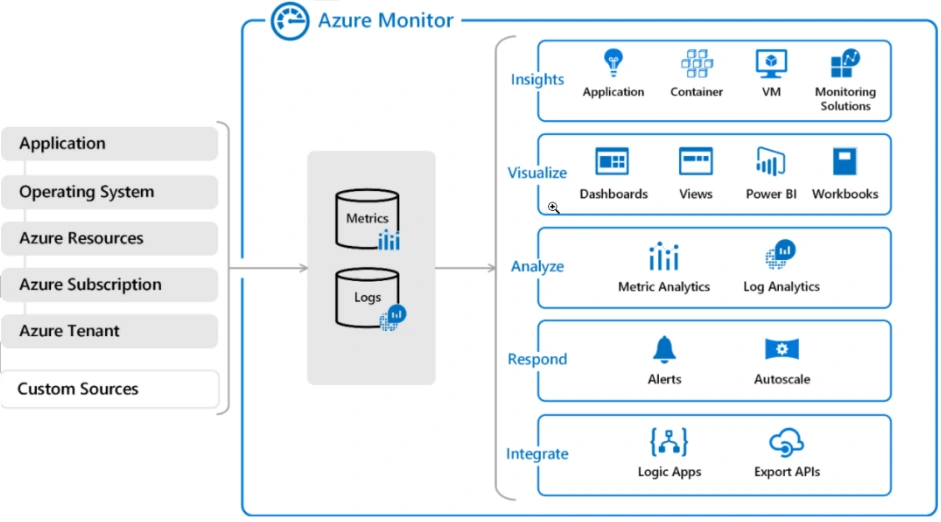
In this lab, a system to gather important information about how our virtual machines are performing. We’ll create a virtual machine and then set up a Log Analytics Workspace, which acts like a central collection point for all our monitoring data.
After that, we’ll create a Data Collection Rule to tell Azure exactly what kind of events and performance details to pick up from our virtual machine and send to that Log Analytics Workspace.
2. Azure Network Watcher
Azure Network Watcher is a comprehensive monitoring and diagnostic service provided by Microsoft Azure. It offers a suite of tools and capabilities to monitor, diagnose, and gain insights into the network health and connectivity of Azure resources.
By utilizing Azure Network Watcher, you can effectively monitor and diagnose network issues, optimize performance, ensure compliance, and enhance the overall reliability of your Azure network infrastructure.
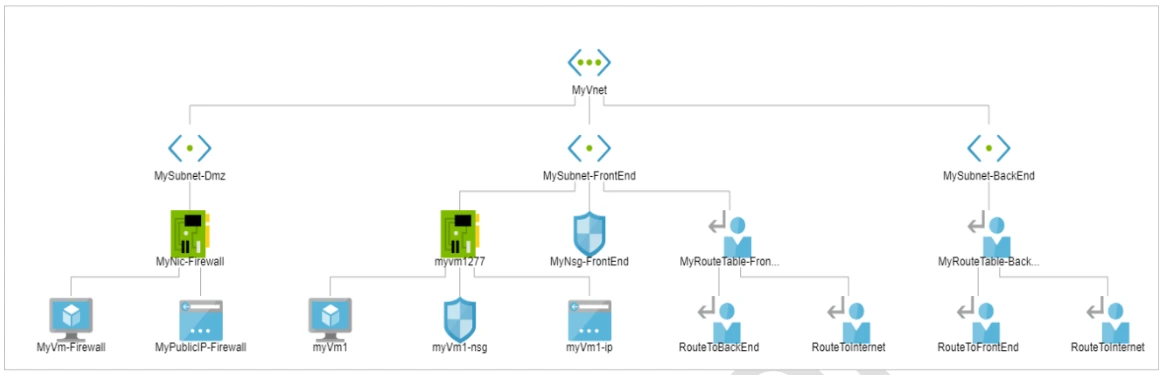
In this lab, We’ll access Network Watcher in the portal to visually check our network’s layout and see how different parts are connected. Then, we’ll use its tools like “Next Hop” to trace network paths and “Connection Troubleshoot” to diagnose why our virtual machines might not be talking to each other properly on certain ports.
3. Backup of Azure VM into Azure Backup Vault
Azure Backup Vault is a scalable and secure cloud-based service provided by Microsoft Azure that allows you to protect and restore your data and applications in the event of accidental deletions, data corruption, or system failures.
When you back up an Azure VM into an Azure Backup Vault, the service takes a snapshot of the VM’s disks and stores them in the vault. This snapshot captures the entire state of the VM at a specific point in time, including the operating system, applications, and data.
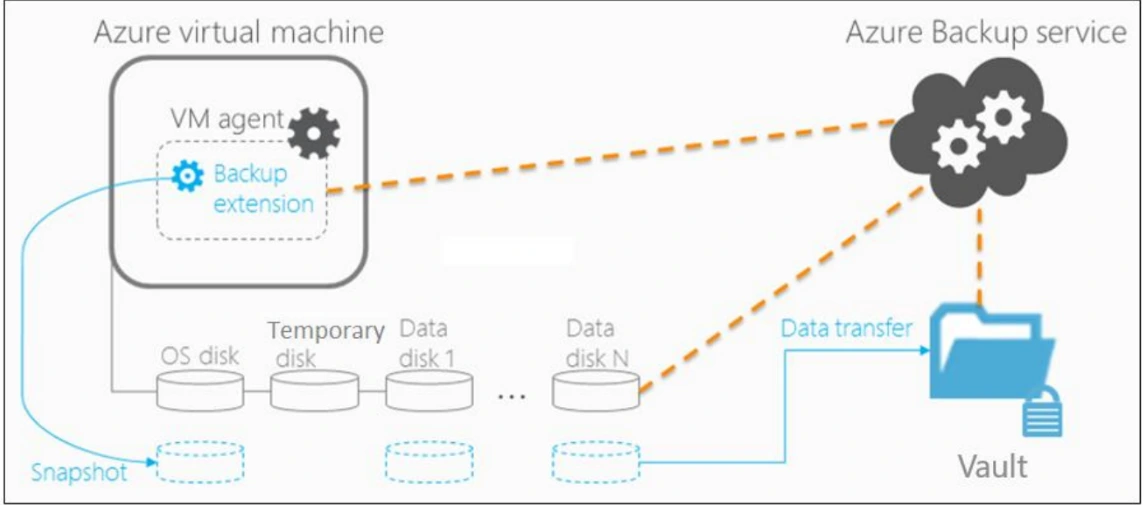
In this lab, We start by creating a Recovery Services Vault, which is like a secure storage place for all our VM backups. Then, we define backup policies to specify when and how often our VMs should be backed up, along with how long those backups should be kept. Finally, we configure our chosen Azure VMs to be backed up into this vault according to those policies, ensuring our data is safe and easily recoverable.
4. Backup of On-Premise Server into Azure Backup Vault
Backing up your on-premises server into an Azure Backup Vault is a Microsoft Azure product that allows you to secure the data on your server by producing and storing backups in an Azure cloud-based backup vault. This backup technique assists in protecting your important data and offers an extra layer of data security in the event of unintentional data loss, hardware failure, or other disruptive circumstances.
Azure Backup provides a reliable and scalable solution for backing up on-premises servers into the cloud. It eliminates the need for maintaining on-premises backup infrastructure and offers the flexibility to store backups. offsite in a secure Azure environment.
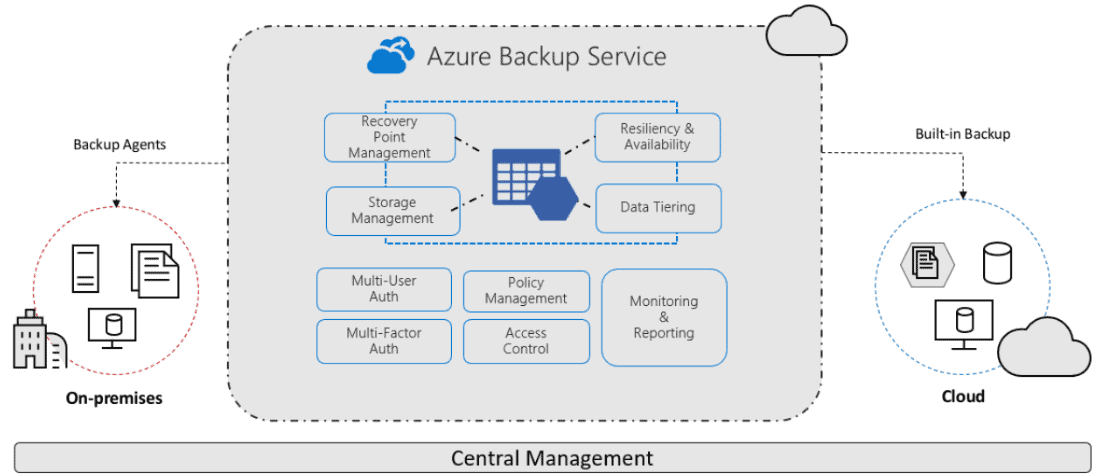
In this lab, we will simulate an on-premises server and then set up an Azure Recovery Services Vault in the cloud. We install the MARS Agent on our simulated server to push specific files and folders securely into that Azure vault, and then test restoring the data to ensure it’s safely backed up.
5. Exploring Monitoring Capabilities of VMSS
Azure Monitor provides deep visibility into the performance and health of Virtual Machine Scale Sets by collecting metrics, logs, and diagnostic data from all instances in the scale set. Monitoring a VMSS helps administrators track CPU utilisation, memory usage, network throughput, and autoscaling events across all VM instances, enabling proactive identification of performance bottlenecks and capacity issues before they impact production workloads.
In this lab, we will enable Azure Monitor and VM Insights on a deployed Virtual Machine Scale Set. We will configure diagnostic settings to collect performance counters and event logs from the VMSS instances and send them to a Log Analytics Workspace. We will then use Azure Monitor dashboards and workbooks to visualize instance-level metrics and track autoscaling events, and set up alert rules that trigger notifications when CPU utilisation exceeds a defined threshold across the scale set.
1.8 Containers & Serverless Labs
1. Create Web Apps with two Deployment Slots
Azure App Service deployment slots are live environments within a single App Service instance that allow you to host different versions of your web application simultaneously. Deployment slots support staging environments where new application versions can be tested before being swapped into production. The swap operation is instantaneous and eliminates downtime, making it ideal for blue-green deployments and controlled rollouts. Each slot has its own hostname and can carry independent app settings and connection strings.
In this lab, we will create an Azure App Service Web App and add a staging deployment slot alongside the default production slot. We will deploy different versions of a sample web application to each slot and verify that they are independently accessible via their respective URLs. We will then perform a slot swap operation to promote the staging version to production and confirm that the swap has been applied correctly, demonstrating how deployment slots enable safe, zero-downtime application deployments in Azure.
2. Implement Azure Container Instance (ACI)
Azure Container Instances (ACI) is a fully managed, serverless service for running Docker containers in Azure without needing to manage any underlying virtual machines or infrastructure. ACI is ideal for simple, isolated container workloads such as batch jobs, event-driven tasks, and development environments where the overhead of a full Kubernetes cluster is unnecessary. Containers can be deployed in seconds using a public or private container image, with configurable CPU and memory allocation.
In this lab, we will deploy a containerized application to Azure Container Instances directly from the Azure Portal using a Docker image. We will configure the container group with a public DNS label and appropriate networking settings. Once deployed, we will access the running application through its public URL in a web browser and explore the container logs and monitoring data within the Azure Portal to verify that the container is running and handling requests as expected.
3. AKS cluster creation and accessing it
Azure Kubernetes Service (AKS) is a fully managed service that simplifies the deployment, management, and scaling of containerized applications. It abstracts Kubernetes management, allowing developers to focus on their applications. An AKS cluster consists of two key components: the control plane (master node), which orchestrates workloads and manages the cluster, and the worker nodes, which run the application workloads.
In this lab, we will create Kubernetes cluster in Azure, which is like a powerful orchestrator for running our containerized applications. We’ll go to the Azure portal and create this cluster, defining its basic settings, network configuration, and monitoring options.
Once the cluster is deployed and ready, we’ll open the Azure Cloud Shell to connect to it. There, we’ll retrieve the necessary access credentials and then run a simple command to confirm that our connection to the AKS cluster is successful and its nodes are all up and running.
There are multiple ways to deploy an AKS cluster. The Azure Portal provides a user-friendly graphical interface for easy cluster creation and management. The Azure CLI offers command-line tools for more control, while Azure PowerShell is tailored for Windows environments and automation. For infrastructure-as-code, ARM templates and Terraform offer template-driven deployment, ensuring consistent, repeatable setups across environments, making AKS more efficient and scalable.

4. Deploy Azure Kubernetes Service (AKS) Cluster
Azure Kubernetes Service (AKS) provides a managed Kubernetes environment that simplifies deploying, managing, and scaling containerized applications. For enterprise deployments, using the Azure CLI or Infrastructure as Code tools ensures repeatable, consistent cluster configurations with full control over networking, Microsoft Entra ID integration, node pool settings, and monitoring. Deploying AKS via CLI also supports integration with Azure Container Registry (ACR) for private image pulls.
In this lab, we will deploy an AKS cluster using the Azure CLI, specifying configuration options such as node count, VM size, Kubernetes version, and network settings. We will integrate the cluster with Microsoft Entra ID for role-based access control and enable Azure Monitor Container Insights for observability. Once the cluster is running, we will deploy a sample containerized application using a Kubernetes manifest file and expose it via a load-balanced service, demonstrating an end-to-end AKS deployment from provisioning to application access using CLI-driven automation.
1.9 PowerShell & CLI Labs
1. Create VM using PowerShell
Azure PowerShell is a set of cmdlets for managing Azure resources directly from the PowerShell command line. It provides a scriptable, repeatable approach to infrastructure provisioning and is widely used for automating Azure VM creation, configuration, and management tasks. The Az PowerShell module is the current recommended module for interacting with Azure services from PowerShell.
In this lab, we will use Azure PowerShell to create a Windows Virtual Machine from scratch. We will run cmdlets to create a resource group, virtual network, subnet, public IP address, and network interface, then provision a VM using these resources. After the VM is created, we will retrieve its public IP address and connect to it using RDP, confirming that the PowerShell-based provisioning workflow completed successfully. This lab demonstrates how to automate VM creation using a scripted approach instead of the Azure Portal.
2. Create an Azure Managed Disk by Azure PowerShell
Azure Managed Disks can be created and managed programmatically using Azure PowerShell, enabling automation of disk provisioning workflows. Creating managed disks via PowerShell is particularly useful when disks need to be provisioned consistently across multiple environments or when disk creation is part of a larger automated infrastructure deployment pipeline. The Az.Compute PowerShell module provides the cmdlets needed to create, configure, and attach managed disks to Azure VMs.
In this lab, we will use Azure PowerShell cmdlets to create a new Premium SSD managed disk in a specified resource group and region. We will then attach the managed disk to an existing Windows Virtual Machine using PowerShell. After connecting to the VM via RDP, we will initialize and format the new disk through Windows Disk Management, making it available as a usable data volume. This lab reinforces PowerShell-based storage management skills for Azure infrastructure automation.

3. Create a Virtual Machine using Azure CLI
A Resource Group in Azure acts as a container that holds related resources for an Azure solution, enabling easier management and organization. The Azure CLI provides a powerful command-line interface to create and manage Azure resources efficiently.
Here’s what you need to know about using Azure CLI for resource management:
- Purpose and Function: Manage Azure resources programmatically for automation and consistency.
- Create Resource Group: Define a logical container for related resources using CLI commands.
- Create Virtual Machine: Deploy VMs with specific configurations directly through CLI.
- Access and Login: Securely connect to your VM to manage workloads.
In this lab, we will create a resource group and a virtual machine using Azure CLI commands, then log into the VM to verify deployment and access.
Related Readings : Top Azure CLI Commands For Managing Azure Resources
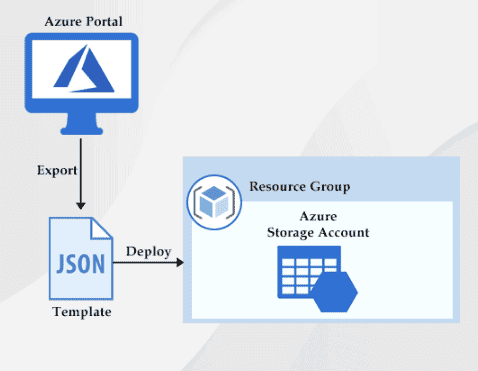
4. Create and Deploy ARM templates using Azure Portal
Azure Resource Manager (ARM) templates are JSON files that define the infrastructure and configuration for your Azure solutions. Using ARM templates, you can deploy resources consistently and repeatedly through the Azure Portal or automated pipelines.
Here’s what you need to know about ARM templates in Azure:
- Purpose and Function: Enable Infrastructure as Code (IaC) for automated, consistent resource deployment.
- Template Creation: Define Azure resources and their properties declaratively in JSON format.
- Deployment: Use the Azure Portal to deploy and manage these templates easily.
- Configuration and Management: Templates support parameterization and version control for flexible and repeatable deployments.
In this lab, we will create a virtual machine ARM template and deploy it through the Azure Portal, demonstrating template-driven resource provisioning.
5. Authenticate to Azure Tenant via PowerShell
Authenticating to an Azure tenant using PowerShell is an essential skill for automating Azure management tasks. Azure PowerShell supports multiple authentication methods including interactive sign-in, service principal authentication using a client secret or certificate, and managed identity-based authentication for workloads running inside Azure. Understanding the right authentication method for each scenario — interactive development sessions versus automated pipeline runs — is critical for building secure and reliable automation workflows.
In this lab, we will use the Connect-AzAccount cmdlet to interactively authenticate to an Azure tenant using Microsoft Entra ID credentials. We will then explore how to authenticate non-interactively using a service principal with a client secret, which is the approach commonly used in CI/CD pipelines and scheduled automation scripts. We will use Get-AzContext to verify the active subscription context and demonstrate how to switch between multiple subscriptions within the same tenant, building a foundation for writing secure, production-ready Azure PowerShell automation.
1.10 DevOps Foundations Labs
1. Creating FREE Microsoft Azure DevOps Account
Azure DevOps account is a cloud-based service provided by Microsoft that enables teams to plan, develop, test, and deliver applications efficiently. Azure DevOps account provides a centralized platform for managing all aspects of software development projects. It includes features such as Azure Boards for agile project management, Azure Repos for version control and code collaboration, Azure Pipelines for continuous integration and delivery, and Azure Test Plans for test management and execution.
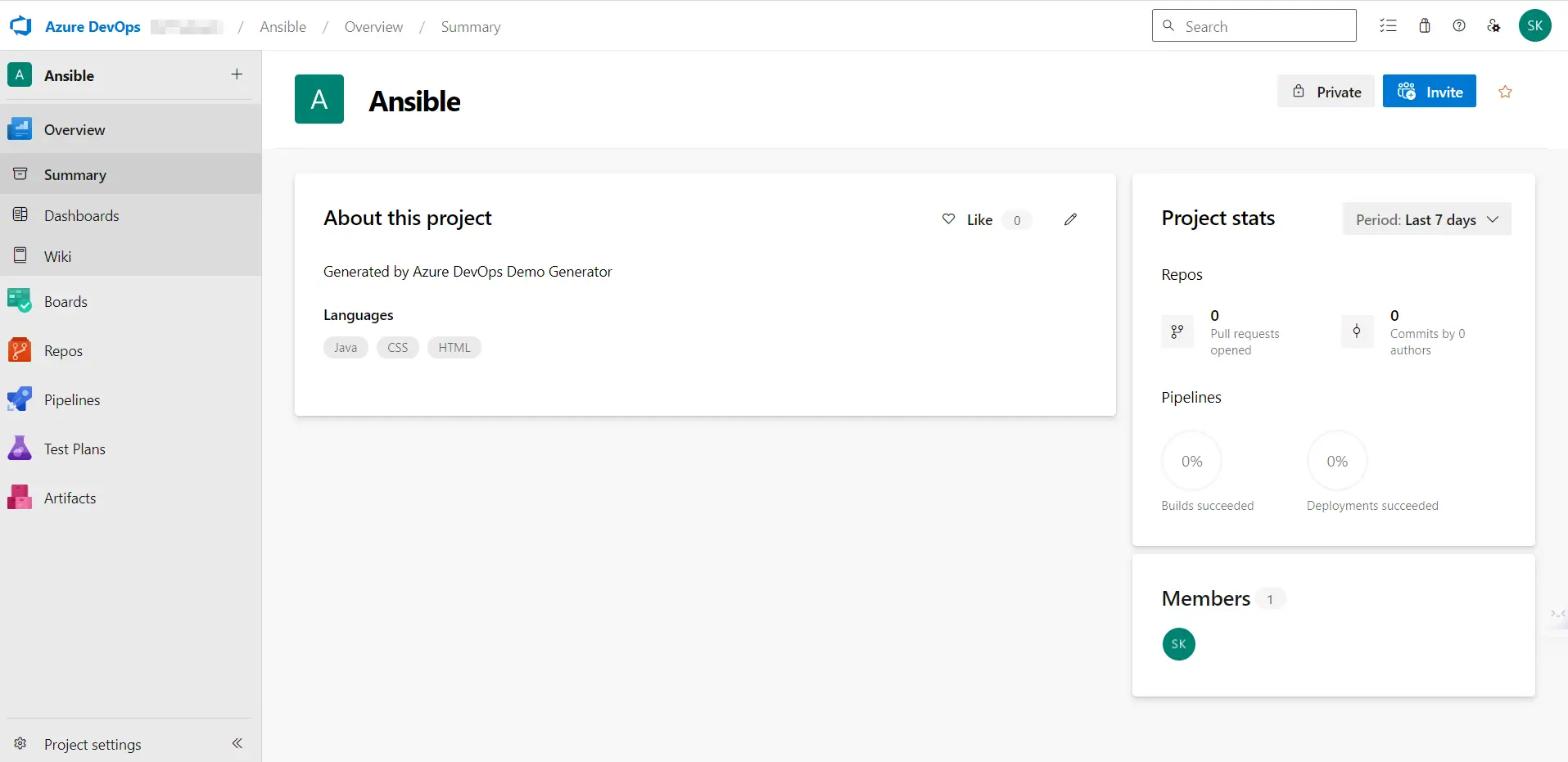
In this lab, we will see the steps to setup the Azure DevOps account from scratch and what next things you need to do to get access to micrsoft hosted agents for your pipelines to run.
Want to create free Azure DevOps account? Click Here
2. Enable Parallelism in Azure DevOps
Parallelism in Azure DevOps refers to the ability to execute multiple tasks or stages of a pipeline simultaneously. It allows for the concurrent execution of jobs, which can significantly improve the speed and efficiency of pipeline runs.
In this lab, we will see the process to get the permission to use Microsoft hosted agents for our piprline to run either for public or private projects in Azure DevOps.
The use of parallelism in Azure Pipelines offers several benefits for running pipelines. Firstly, it reduces the overall execution time of pipelines by running multiple jobs in parallel.
Want to enable parallelism in your Azure DevOps account? Click Here
3. Agile Plan & Portfolio Management by Azure Boards
Azure Boards is a work tracking service within Azure DevOps that provides rich planning and project management capabilities for software development teams. It supports Agile, Scrum, and Kanban methodologies and includes features such as work items, backlogs, sprint planning, boards, and queries. Azure Boards helps teams plan iterations, track progress, manage priorities, and visualize work across the entire development lifecycle from idea to delivery.
In this lab, we will set up an Azure Boards project and configure it to support an Agile workflow. We will create Epics, Features, and User Stories to represent a sample software project and organize them into a product backlog. We will plan a sprint by assigning work items to a sprint iteration, assign them to team members, and track progress using the Kanban board view. Finally, we will review the sprint burndown chart to monitor work completion, demonstrating how Azure Boards supports end-to-end Agile project management within Azure DevOps.
4. Create & Connect to Windows Virtual Machine
Setting up a Windows Virtual Machine as part of the DevOps learning environment is a common prerequisite for many Azure DevOps labs. A Windows VM provides an isolated environment for installing development tools such as Visual Studio, Git, and Azure CLI, which are required for building and deploying applications through Azure Pipelines and other DevOps workflows.
In this lab, we will create a Windows Virtual Machine in the Azure Portal configured with the specifications needed for DevOps lab activities. We will open the required inbound ports, connect to the VM using Remote Desktop Protocol (RDP), and verify that the operating system is accessible and ready. This VM will serve as the development and build environment for subsequent Azure DevOps pipeline labs throughout Module 10 and beyond.
1.11 Azure Migration & Disaster Recovery
1. Configure Agent Pools & Understand Pipeline
Azure Pipelines can run jobs on Microsoft-hosted agents or self-hosted agents managed within custom agent pools. Microsoft-hosted agents provide a ready-to-use environment with a wide range of pre-installed software, while self-hosted agents give teams full control over the build environment, installed tools, and network access. Agent pools are logical groupings of agents that organize available build and deployment machines for pipeline jobs across an Azure DevOps organization.
In this lab, we will explore the Azure Pipelines agent pool configuration within Azure DevOps. We will review the default Microsoft-hosted agent pools and understand their pre-installed tooling and capabilities. We will then set up a self-hosted agent pool by registering a Windows or Linux virtual machine as an agent in Azure DevOps. After the agent is online, we will create a simple YAML pipeline targeting the self-hosted pool and run it to confirm that jobs are picked up and executed correctly by the registered agent.
2. Continuous Integration with Azure Pipelines
Continuous Integration (CI) is a DevOps practice where code changes are automatically built and tested each time they are committed to a source code repository. Azure Pipelines supports CI workflows by automatically triggering pipeline runs when changes are pushed to Azure Repos or GitHub, running build tasks, executing unit tests, and producing build artifacts that are ready for deployment. This ensures that integration issues are identified and resolved early in the development cycle.
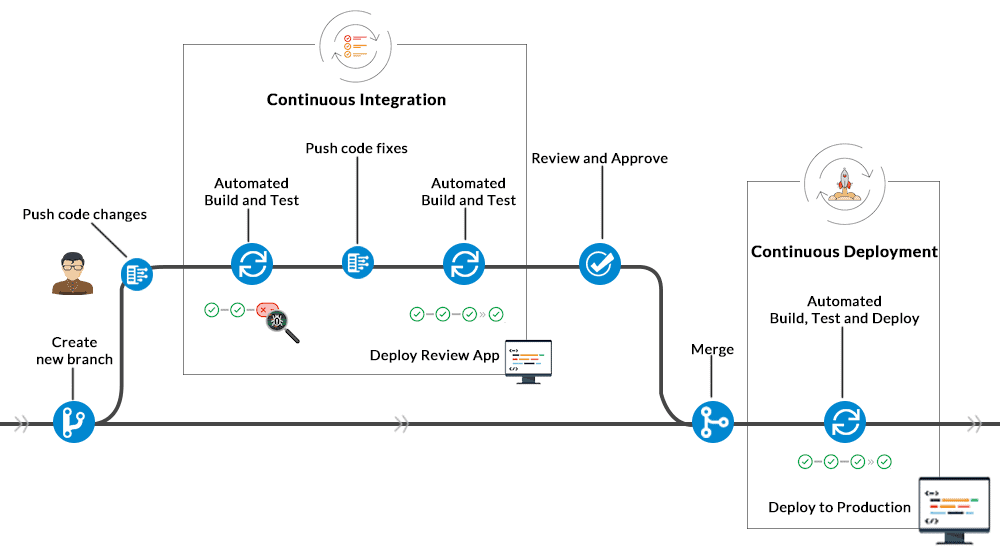
In this lab, we will create an Azure Pipeline that automatically triggers on code commits to an Azure Repos repository. We will configure the pipeline using a YAML file to compile a sample application, run automated unit tests, and publish the build output as a pipeline artifact. We will then make a code change, push it to the repository, and observe the pipeline trigger automatically, tracking the run through the checkout, build, and test stages to confirm the CI workflow is functioning end-to-end.
3. Integrating AZ Key Vault with Azure DevOps
Azure Key Vault is a cloud service for securely storing and managing sensitive information such as API keys, passwords, certificates, and connection strings. Integrating Azure Key Vault with Azure DevOps enables pipelines to retrieve secrets securely at runtime without hardcoding sensitive values in YAML files or environment variables. This is a security best practice for any production CI/CD pipeline and eliminates the risk of secrets being exposed in source code repositories or pipeline logs.
In this lab, we will create an Azure Key Vault and store a sample secret such as a database connection string or API key. We will configure a variable group in Azure DevOps that is linked to the Key Vault, enabling the pipeline to access secrets dynamically at runtime. We will then build a pipeline that reads the secret from Key Vault via the linked variable group and uses it during a deployment step, verifying that the secret is consumed correctly without being exposed in the pipeline output.
4. Implement Github actions for CI/CD
Azure offers its own set of tools for CI/CD on Azure DevOps portal. There are various tools available in market for CI/CD pipelines.One such tool is Github actions offered by Github for CI/CD deployment.
In this lab, we’re setting up an CI/CD directly within GitHub using it service called github action to build and deploy our application to Azure. We’ll prepare our GitHub repository, create a secure connection to Azure, and then use a GitHub Workflow to automatically build and deploy our application whenever we make changes.
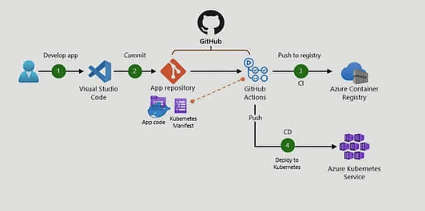
Here you will be using Github actions to implement CI/CD deployment on Azure portal. This will deploy web application on Azure portal.
5. Package Management with Azure Artifacts
Azure Artifacts is a package management service in Azure DevOps that allows teams to create, host, and share packages such as NuGet, npm, Maven, Python, and Universal packages. It provides a private, versioned package registry that integrates seamlessly with Azure Pipelines, enabling teams to publish build outputs as versioned packages and consume them as dependencies across multiple projects or pipelines within the organization.
In this lab, we will create an Azure Artifacts feed in Azure DevOps and configure it to host packages for our project. We will set up a pipeline that builds a sample application and publishes the resulting package to the Artifacts feed as part of the CI process. We will then configure a second pipeline that restores packages from the same feed as a dependency, demonstrating how Azure Artifacts enables controlled, versioned package sharing and dependency management across teams within Azure DevOps.
1.12 Azure Developer Labs
1. Control Deployments using Release Gates
Release gates in Azure Pipelines are automated evaluation criteria that must be satisfied before or after a deployment stage proceeds. Gates can query external services, run health check scripts, or evaluate Azure Monitor alert states to ensure defined conditions are met before a pipeline advances to the next stage. This prevents deployments from progressing when an environment is unhealthy or when approval conditions have not been met, adding an automated safety layer to deployment workflows.
In this lab, we will configure a multi-stage Azure Pipeline with a pre-deployment gate on the production stage. We will set up a gate that checks an Azure Monitor alert or API health endpoint to confirm that the staging environment is stable before allowing the pipeline to deploy to production. We will also configure a post-deployment gate to verify application availability after the deployment completes, demonstrating how release gates enforce automated quality controls throughout the pipeline.
2. Configuring Pipelines as Code with YAML
Pipelines as Code refers to defining CI/CD pipeline configuration in YAML files stored alongside application source code in a version-controlled repository. This approach makes pipeline definitions auditable, versioned, and reviewable through standard pull request and code review workflows. Azure Pipelines natively supports YAML-based pipeline definitions, enabling teams to manage their entire build and deployment configuration as source-controlled code rather than manually configured UI settings.
In this lab, we will build a YAML-based Azure Pipeline from scratch and explore its structure including triggers, stages, jobs, steps, variables, and conditions. We will configure a multi-stage YAML pipeline with separate build, test, and deployment stages, stage dependencies, and environment approval gates between stages. The completed YAML file will be committed to the repository and triggered automatically on a code push, demonstrating the full Pipelines as Code approach within Azure DevOps.
3. Setting up and Running Functional Tests
Functional testing in CI/CD pipelines ensures that deployed applications behave correctly from a user perspective before they are promoted to the next environment. Integrating automated functional tests into the pipeline means every deployment is automatically validated, reducing the risk of regressions reaching production. Azure Pipelines supports a range of test frameworks and can publish test results, code coverage reports, and failure details directly within the pipeline run summary.
In this lab, we will integrate a set of automated functional tests into an Azure Pipeline. We will configure the pipeline to deploy the application to a staging environment and then execute the functional test suite against the deployed application. The pipeline will be configured to publish test results to the Azure DevOps test reporting dashboard and to fail the build stage if any functional tests do not pass, ensuring only verified, working builds are promoted through the pipeline.
4. Enable Dynamic Configuration & Feature Flags
Azure App Configuration is a managed service for centralizing application settings and feature flags. Feature flags allow teams to enable or disable application features at runtime without redeploying code, supporting progressive exposure strategies such as canary releases, A/B testing, and phased rollouts. Dynamic configuration enables applications to reload updated settings automatically when values change in App Configuration, without requiring a restart or redeployment.
In this lab, we will create an Azure App Configuration store and define feature flags and key-value configuration settings within it. We will update a sample application to connect to App Configuration and load its settings and feature flag states at runtime. We will then toggle a feature flag in the App Configuration portal and observe the application reflecting the change immediately without any redeployment, demonstrating how dynamic configuration and feature flags support agile, controlled feature delivery.
1.13 Power Shell and CLI usage
1. Azure Deployments using Azure Bicep Templates
Azure Bicep is a domain-specific language (DSL) for deploying Azure resources declaratively. It is a more readable and concise alternative to ARM templates written in JSON, and it compiles down to standard ARM templates at deployment time. Bicep supports modules, strong typing, and IntelliSense integration in Visual Studio Code, making it the recommended Infrastructure as Code language for Azure-native deployments. It integrates seamlessly with Azure CLI, Azure PowerShell, and Azure Pipelines for automated, repeatable deployments across environments.
In this lab, we will author a Bicep template to define and deploy a set of Azure resources including a Virtual Network and a Virtual Machine. We will use the Bicep extension in Visual Studio Code to write and validate the template, then deploy it using the Azure CLI with the az deployment group create command. We will also parameterize the template to support multiple environments such as development and production, and verify that all resources are provisioned correctly as defined in the Bicep file, demonstrating the full Infrastructure as Code workflow using Azure Bicep.
1.14 Power Shell and CLI usage
1. Deploying Docker containers to App Service
Azure Web App for Containers enables developers to deploy their applications as Docker containers directly to Azure Web Apps. This integration allows developers to take advantage of the benefits of both Docker containers and the Azure Web Apps platform. Azure Web App for Containers provides a managed platform for hosting these Docker container-based applications. It takes care of infrastructure management, scaling, and load balancing, allowing developers to focus on their application code.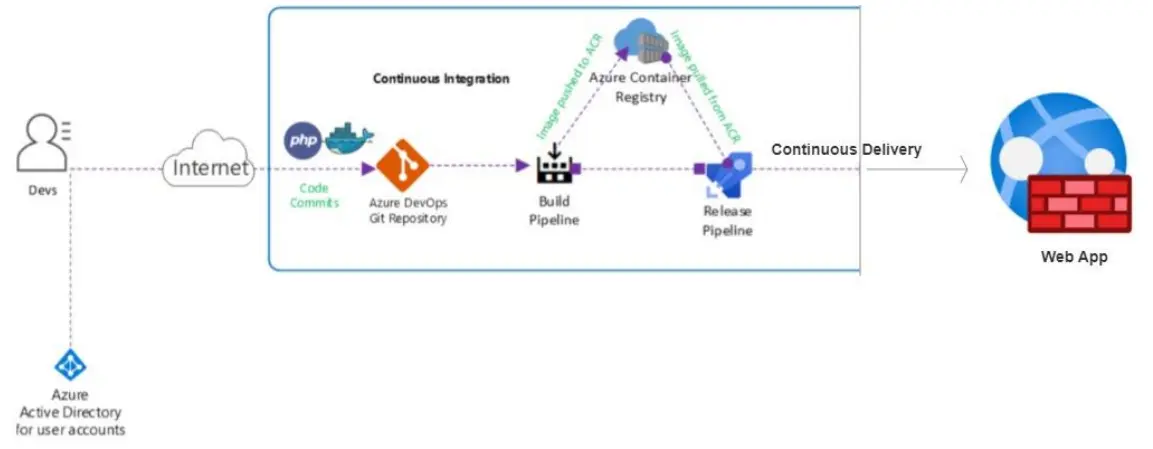
In this lab, we will use Azure pipelines for CI/CD to take our application’s code, package it into a Docker container, and then automatically publish it as a working website using Azure App Service. We’ll prepare our project and code, then configure pipelines that first build our application into a Docker image, and then deploy that image to the App Service.
By leveraging Docker containers, developers can package their applications along with their dependencies into a container image, ensuring consistency and portability across different environments. This eliminates the need for manual configuration and streamlines the deployment process.
2. Monitor Application Performance with Azure Load Testing
Monitor Application Performance with Azure Load Testing essentially means we’re going to push our web application hard to see how it performs under heavy traffic. The goal is to figure out if it can handle many users simultaneously without slowing down or crashing.
In this lab, we will set up CI/CD pipeline and our code is built and deployed with it, and then, we will configure a load testing service to increase the workload on VMs. We’ll run these tests and validate the results, and then integrate these tests into our automatic deployment system.
This way, every time we update our application, it automatically gets stress-tested, making sure that new changes don’t introduce any performance problems and that our application always performs reliably for real users.
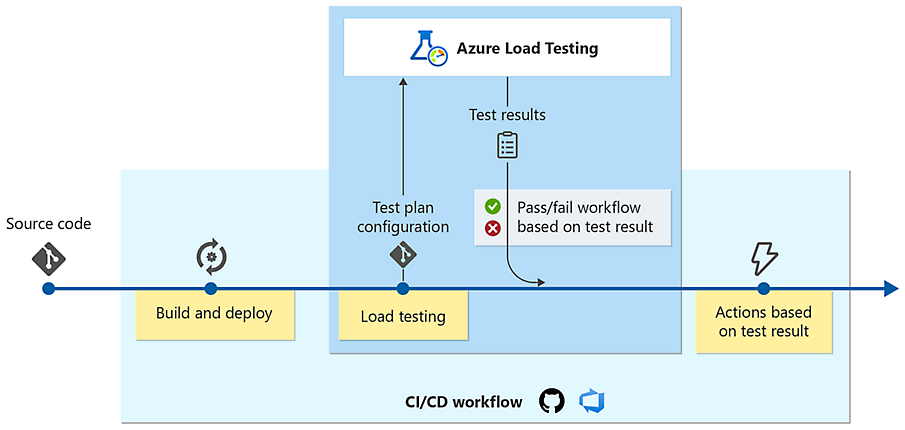
In this lab, we will we’re essentially setting up a CI/CD pipeline to automate to stress-test our application. We first get our application ready with its build and deployment pipelines in Azure DevOps. Then, we deploy and configure Azure Load Testing to simulate heavy user traffic on our app. The main part involves integrating these load tests directly into our CI/CD pipeline, so our application’s performance is automatically validated whenever new changes are deployed.
3. Security & Compliance in an Azure DevOps Pipeline
Integrating security checks directly into CI/CD pipelines is a core principle of DevSecOps, ensuring that vulnerabilities are identified and addressed early in the development process rather than discovered after deployment. Azure DevOps supports embedding security scanning tools — such as static code analysis, dependency vulnerability scanning, and container image scanning — as automated steps within pipeline workflows, shifting security left in the development lifecycle.
In this lab, we will configure an Azure Pipeline with integrated security and compliance scanning steps. We will add a static code analysis step to identify vulnerabilities and code quality issues in the application source code, and include a dependency scanning step to check for known vulnerabilities in third-party packages. The pipeline will be configured to generate a security report and fail the build if high-severity vulnerabilities are detected, demonstrating how security standards are enforced automatically as part of every pipeline run.
4. Integrate Azure DevOps Security with Sonar Cloud
SonarCloud is a cloud-based code quality and security analysis platform that helps teams identify bugs, security vulnerabilities, code smells, and maintainability issues in their codebase. Integrating SonarCloud with Azure Pipelines enables automated code quality gates that can block deployments if the codebase does not meet defined quality thresholds, ensuring only clean and secure code is promoted through the pipeline.
In this lab, we will configure a SonarCloud organization and project linked to an Azure Repos repository. We will update the Azure Pipeline to include SonarCloud analysis steps that automatically scan the application code on every build. We will define a quality gate in SonarCloud with thresholds for code coverage, duplications, and security vulnerability counts. The pipeline will check the quality gate status after each scan and fail the build if the thresholds are not met, demonstrating end-to-end code quality enforcement integrated into the Azure DevOps CI/CD workflow.
Projects
1. Deployment of 3 tier Architecture in Azure
A 3-tier architecture is a software design pattern that separates an application into three logical tiers: presentation, application, and data. Each tier has a specific set of responsibilities and communicates with the other tiers through well-defined interfaces.
| Tier | Responsibilities |
|---|---|
| Presentation | Displays the user interface and handles user interactions. |
| Application | Contains the business logic of the application and processes user requests. |
| Data | Stores and manages the application’s data. |
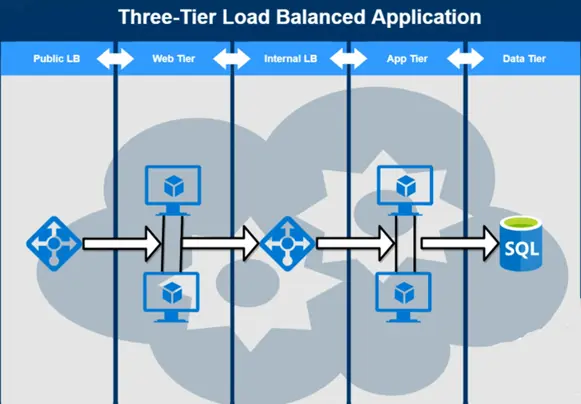
In this project, we will setup the 3- tier infrastructure within Azure. These Three tier will include Web tier, App Tier, Data Tier. Once done we will create connectivity between all of them and place 2 load balancers to balance the traffic.
2. Containerise and deploy a Java app to Azure
Deployment of a Java app to a web server is a legacy process but as the DevOps field is growing day by day, we will learn to deploy the app inside containers and power, efficiency and simplicity of AKS or kubernetes. This will also improve the hardware usage while deploying a single app and leaving rest hardware usable for other applications.
This project will cover your knowledge on deployment, containers, Azure Kubernetes Service(AKS), CI/CD pipelines, git repository and some more technologies used so far in Azure on daily basis.
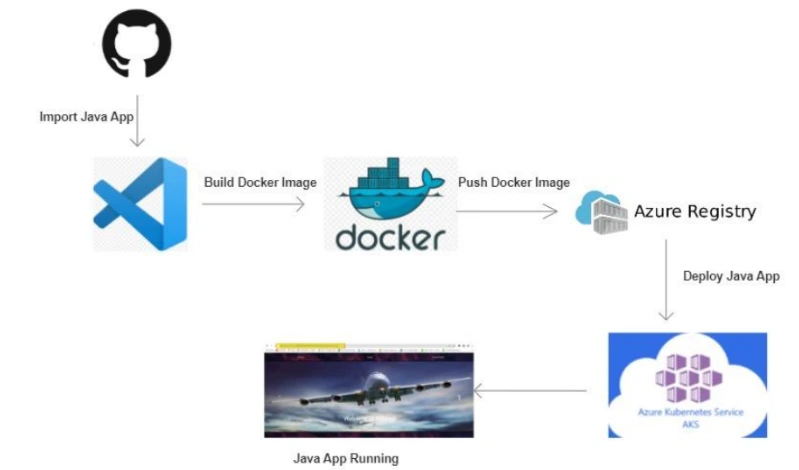
In this project, we will be importing a java application to work environment, then build a docker image for the application. Once done this image will be stored in ACR (Azure container registry). Further, this image will be pulled and run on AKS cluster. This cluster will be configured to acces the application running on cluster.
3. Automating Infrastructure deployment using Terraform and Azure pipeline
For automated deployment, Azure DevOps and Azure Pipelines provide a robust CI/CD framework. You can use Terraform and Azure Resource Manager (ARM) Templates for infrastructure-as-code to automate your entire deployment process.
Terraform is an open-source Infrastructure as Code(IaC) software tool that enables you to safely and predictably create, change, and improve infrastructure. Azure Pipelines is a continuous integration and continuous delivery (CI/CD) service that helps you automate the build, test, and deployment of your code.
By automating infrastructure deployment using Terraform and Azure Pipelines, you can:
- Reduce the risk of human error
- Improve the speed of deployment
- Increase the reliability of deployments
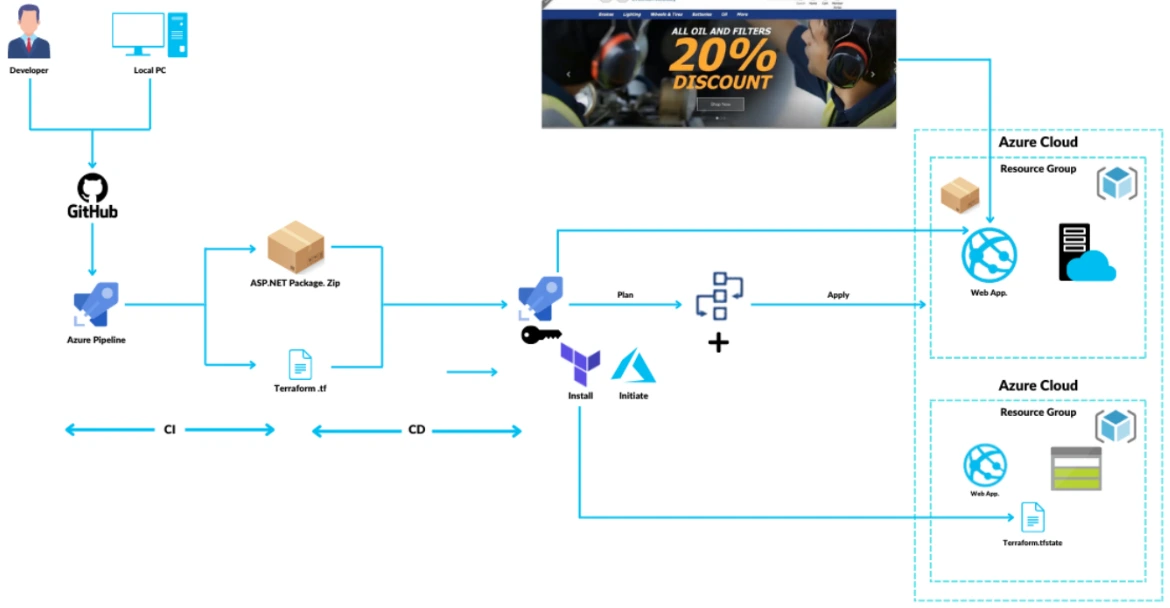
In this project, we will be building a web app application with the help of CI pipeline. The pipeline will also be genrating a terraform file as well, which will be used later on. Once th application is built, it will be further planned to deploy. Before deployment terraform code will be configured to setup infrastructure in Azure and then our application will be deployed on the same resource. Lastly we will testify by accessing the web app url in a web broswer.
Planning to perform this lab? Click here
4. Deploying multi-container application to AKS
Deploying a multi-container application to Azure Kubernetes Service (AKS) is the process of deploying multiple containers to an AKS cluster. AKS is a managed Kubernetes service that makes it easy to deploy and manage containerized applications.
There are many benefits to deploying a multi-container application to AKS, including:
- Scalability: You can scale your application up or down by adding or removing container instances.
- High availability: AKS distributes your containers across multiple hosts, so your application will remain available even if one host fails.
- Security: AKS uses industry-standard security features to protect your applications.
- Cost savings: AKS can help you save money by reducing the need for manual infrastructure management.
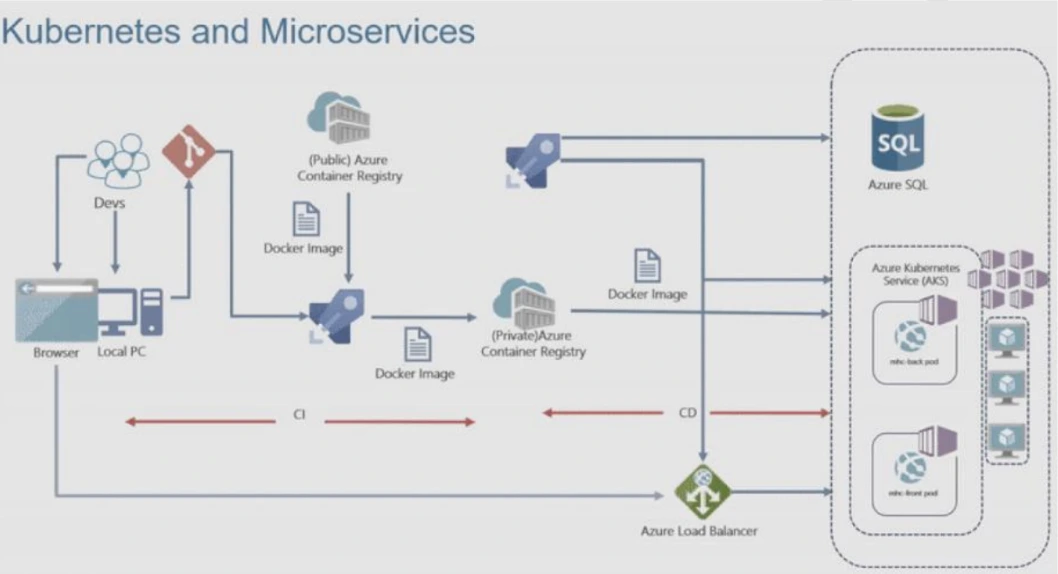
In this project, we will be building a multi-container web application with the help of a CI/CD pipeline. First, our essential infrastructure, including an Azure Kubernetes Service (AKS) cluster, an Azure Container Registry (ACR), and an Azure SQL database, will be created and configured.
Once the application is built and its environment settings are in place, our pipeline will automatically deploy this multi-container application onto the AKS cluster, ensuring all its components connect properly to the database and other resources. Lastly, we will verify its functionality by accessing the web app URL in a web browser.
5. Migration of resources from On-Premise to Azure
Migration of resources from On-Premise to Azure is the process of moving your existing IT infrastructure and workloads from your own data center to the Microsoft Azure cloud platform. This can include servers, virtual machines, storage, databases, and applications.
Why migrate to Azure?
There are many benefits to migrating to Azure, including:
- Scalability and flexibility: Azure offers a wide range of services that can be scaled up or down as needed, giving you the flexibility to meet your changing business demands.
- Reliability and security: Azure is a highly reliable and secure platform, with built-in security features and disaster recovery capabilities.
- Cost savings: Azure can help you save money on IT costs by reducing the need for hardware and software maintenance.
- Innovation: Azure offers a wide range of innovative services that can help you stay ahead of the curve and improve your business operations.
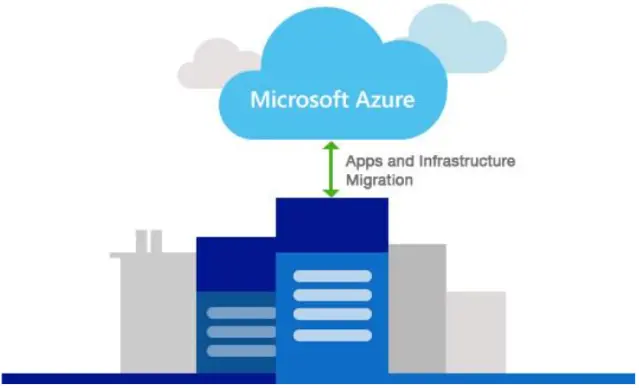
In this project, we will be focusing on moving our existing servers from our local, on-premises data centre into the Azure cloud. This involves first setting up essential Azure components like a Recovery Services Vault and a Storage Account to prepare for the migration process and to hold our data.
Once the cloud environment is ready, we will specifically perform the migration of Hyper-V virtual machines from our on-premises setup directly into Azure, making them run as Azure VMs. This ensures business continuity and leverages Azure’s scalability and reliability for our workloads.
6. Migration of resources across Azure regions
Azure regions are geographically separate locations where Azure resources are hosted. Each region has a unique set of datacenters, which are interconnected with high-bandwidth links. This architecture ensures that Azure resources are highly available and resilient to failures in any one region.
Microsoft provides a variety of tools and services to help you migrate resources across Azure regions. The most common approach is to use the Azure Resource Mover service and Azure Site Recovery.
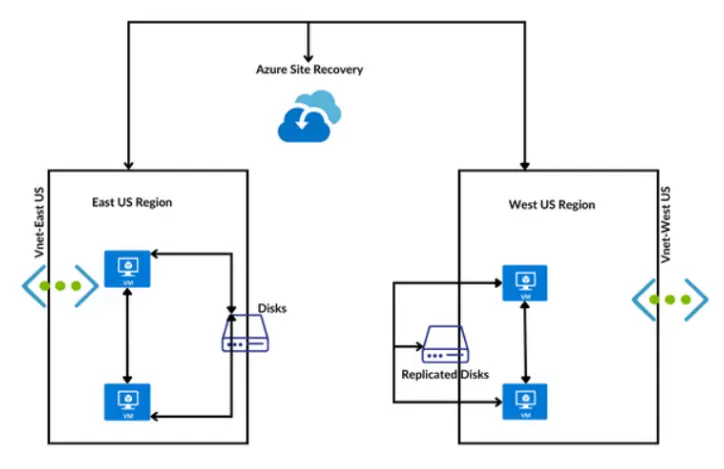
In this project, we will be focusing on moving our Azure resources, specifically a virtual machine, from one Azure region to another. This involves first creating the source virtual machine. Then, we will set up Recovery Services Vaults in both the source and target regions, which are essential for managing disaster recovery and migration.
Once the vaults are ready, we will enable replication for our virtual machine using these Recovery Services Vaults. This process ensures that our VM’s data is continuously copied to the new region, allowing for a seamless and reliable migration of our resources across different Azure geographies.
7. Entra ID (Azure Active Directory) Synchronization with On-Premise Active Directory using Entra Connect (AD Connect)
Azure Active Directory (Azure AD) or Entra ID is a cloud-based identity and access management service that helps organizations manage user identities and access to cloud applications. Azure AD Connect is a synchronization tool that helps organizations synchronize their on-premises Active Directory (AD) domain with Azure AD now known as Microsoft Entra ID.
It consists of two main components: the on-premises Azure AD and the service-side component in Azure AD called Azure AD Connect sync service. The on-premises component is responsible for connecting to the on-premises directory, while the service-side component handles the synchronization process in Azure AD.
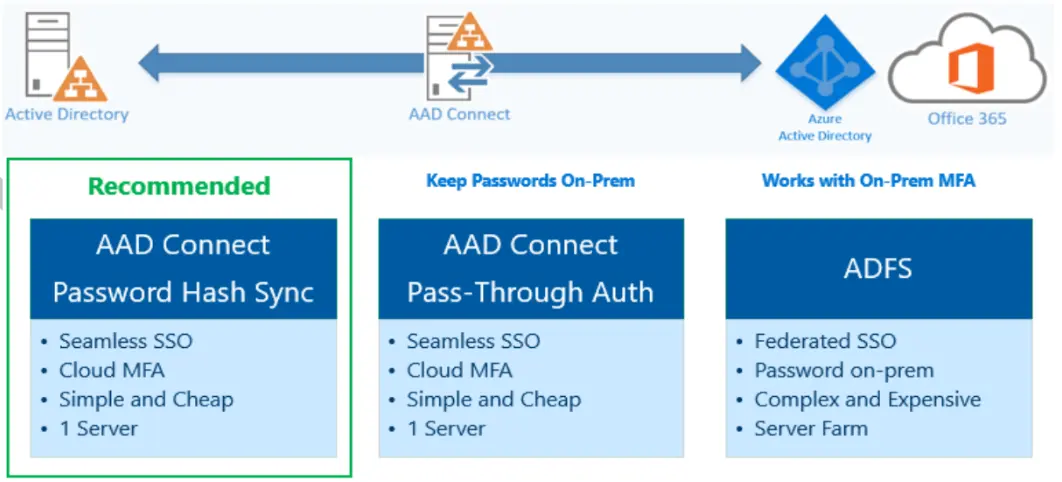
In this project, we will be connecting our local Active Directory with Azure’s cloud identity service (Entra ID). This involves setting up a simulated on-premises Active Directory, and then installing and configuring the Entra Connect tool on it.
This tool will automatically sync users and groups from our on-premises AD to Entra ID, allowing for unified user management across both environments, which we will then verify to ensure all identities are correctly replicated.
8. Containerised application using AKS
A deployment is an AKS object used to manage the deployment and scaling of containerized applications. It provides a declarative way to define and control the lifecycle of application containers within a Kubernetes cluster.
A Kubernetes deployment describes the desired state of the application, including the container image, the number of replicas to run, and the configuration of the application’s pods.
It ensures that the desired state is achieved and maintained by continuously monitoring the actual state of the application and making necessary adjustments
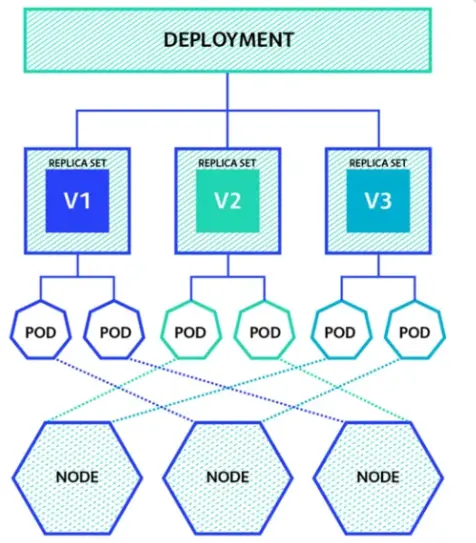
In this project, we will be deploying a containerized application to an Azure Kubernetes Service (AKS) cluster. We’ll set up and configure the AKS cluster, then deploy our application’s container image using deployment files. Finally, we’ll expose the application via a load balancer and verify it’s accessible through a web browser.
9. Site to Site VPN Connection using Azure Portal
A Site-to-Site VPN connection in Azure allows you to connect your on-premises network to your Azure Virtual Network (VNet) over an encrypted IPsec tunnel. This type of connection is often used to connect corporate networks to Azure, or to connect multiple Azure VNets together.
Site-to-Site VPN connections are configured using a VPN gateway. A VPN gateway is a dedicated virtual network appliance that provides secure connectivity between your on-premises network and Azure. To create a Site-to-Site VPN connection, you will need to create a VPN gateway in Azure and configure your on-premises VPN device to connect to it.
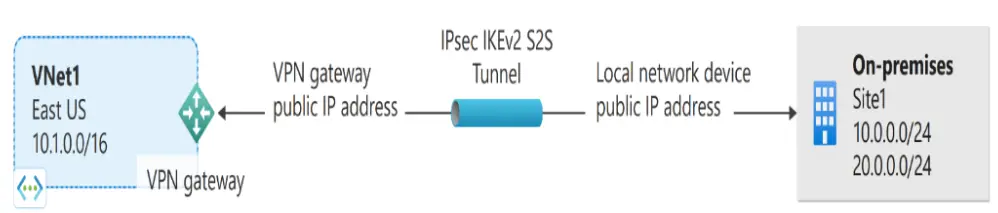
In this project, we will be creating a Site-to-Site VPN connection to securely link our Azure virtual network with an on-premises network. This involves setting up an Azure Virtual Network Gateway as our cloud VPN endpoint and a Local Network Gateway to represent our on-premises network.
Finally, we’ll establish the actual VPN connection between these two gateways, ensuring secure, encrypted communication between our cloud and local environments.
10. Create WordPress Site on Azure Portal
WordPress is a popular open-source platform that allows users to create and manage websites easily. You all might have gone through some of the websites designed using wordpress but they are so optimised that you can hardly find that it is working on based of wordpress template.
Here we will be deploying the wordpress website on Azure portal where you can access the website which will be having database and entire wordpress and resulting a working website. This project will be a good start of deploying a website and going through usage of various services of Azure.
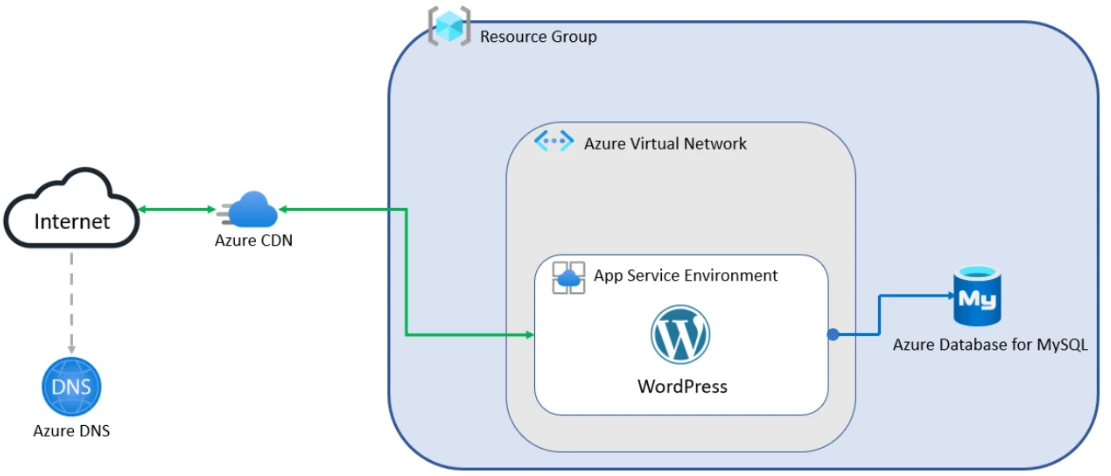
In this project, we will be creating a WordPress website directly on the Azure Portal. This involves simply searching for WordPress in the portal and then configuring its basic details like the resource group, region, a globally unique web app name, and setting up the WordPress admin credentials.
Once deployed, we’ll access the public URL of our new WordPress site in a web browser, and also log into its admin dashboard to verify full functionality, showcasing how easily a professional website can be launched on Azure.
11. Host your Portfolio via Azure Storage (Static Website Hosting)
Azure Storage is a cloud storage solution by Microsoft that provides highly available, scalable, durable, and secure storage for various data objects in the cloud. It offers a range of storage services and features, for IT professionals to interact & manage data stored in Azure Storage accounts.
One of the most cost-effective and scalable ways to host your portfolio online is by using Azure Blob Storage and Azure Static Website Hosting. With Azure Blob Storage, you can store and retrieve any amount of data from anywhere on the web, while Azure Static Website Hosting allows you to host static websites without the need for a web server or any other infrastructure.
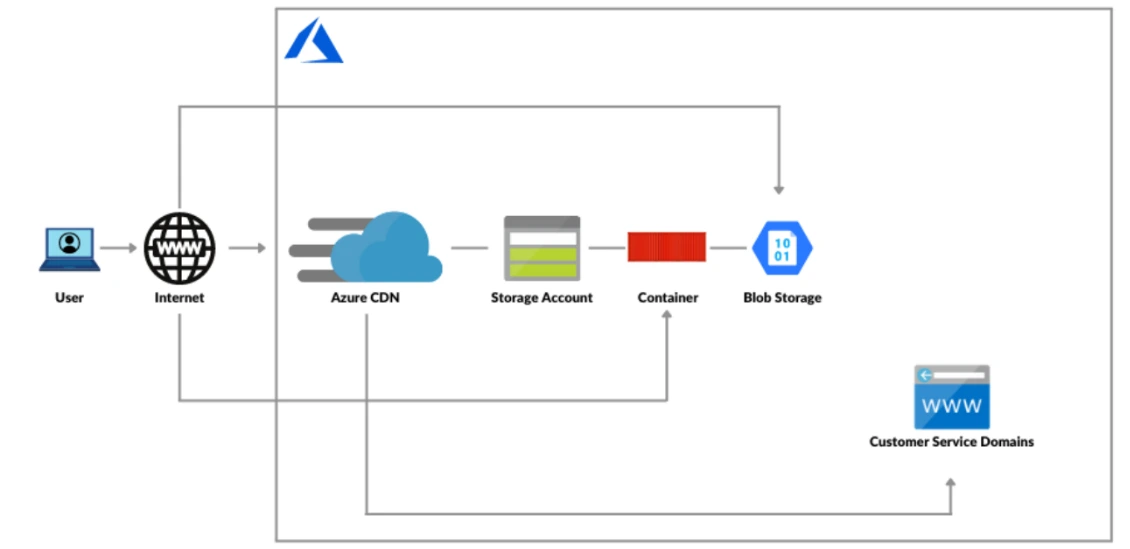
In this project, we will be hosting a static portfolio website directly from Azure Storage for cost-effective and high-performance delivery. We’ll convert our content (like a CV) into HTML and upload it to an Azure Storage account configured for static website hosting.
To make it faster and use a custom domain, we’ll then set up an Azure CDN profile and configure a CNAME record with our domain provider, ensuring our portfolio is accessible globally under our chosen domain name.
12.Deploy Netflix Clone Application on Kubernetes
Deploying a Netflix Clone Application on Kubernetes using CI/CD with Jenkins involves automating the deployment process to ensure seamless integration and delivery.
Jenkins, an open-source automation server, facilitates continuous integration and deployment, streamlining the workflow for Kubernetes-based applications. The deployment process includes containerizing the Netflix Clone application using Docker and orchestrating it with Kubernetes.
In this project, we will be deploying a Netflix Clone application onto a Kubernetes cluster, showcasing a proper secure and automated CI/CD pipeline, you see. What we’ll do is, we’ll first set up the required virtual machines to get our Kubernetes cluster environment ready.
Then, we’ll configure Jenkins to manage our continuous integration and continuous deployment process smoothly. Most importantly, we will integrate SonarQube for checking code quality and Trivy for scanning container image vulnerabilities right into our pipeline for better security.
This whole integrated setup will then fully automate the secure deployment of our Netflix Clone application onto the Kubernetes cluster.

Key benefits of deploying on Kubernetes with Jenkins include:
- Automated build, test, and deployment processes.
- Scalable and resilient infrastructure for handling traffic spikes.
- Efficient management of microservices through Kubernetes orchestration.
- Seamless integration with CI/CD pipelines for faster development cycles.
By leveraging Kubernetes and Jenkins, this deployment ensures high availability, reliability, and a modern approach to application delivery.
Next Task For You
Begin your journey toward Mastering Azure Cloud and landing high-paying jobs. Just click on the register now button on the below image to register for a Free Class on Mastering Azure Cloud: How to Build In-Demand Skills and Land High-Paying Jobs. This class will help you understand better, so you can choose the right career path and get a higher paying job.