
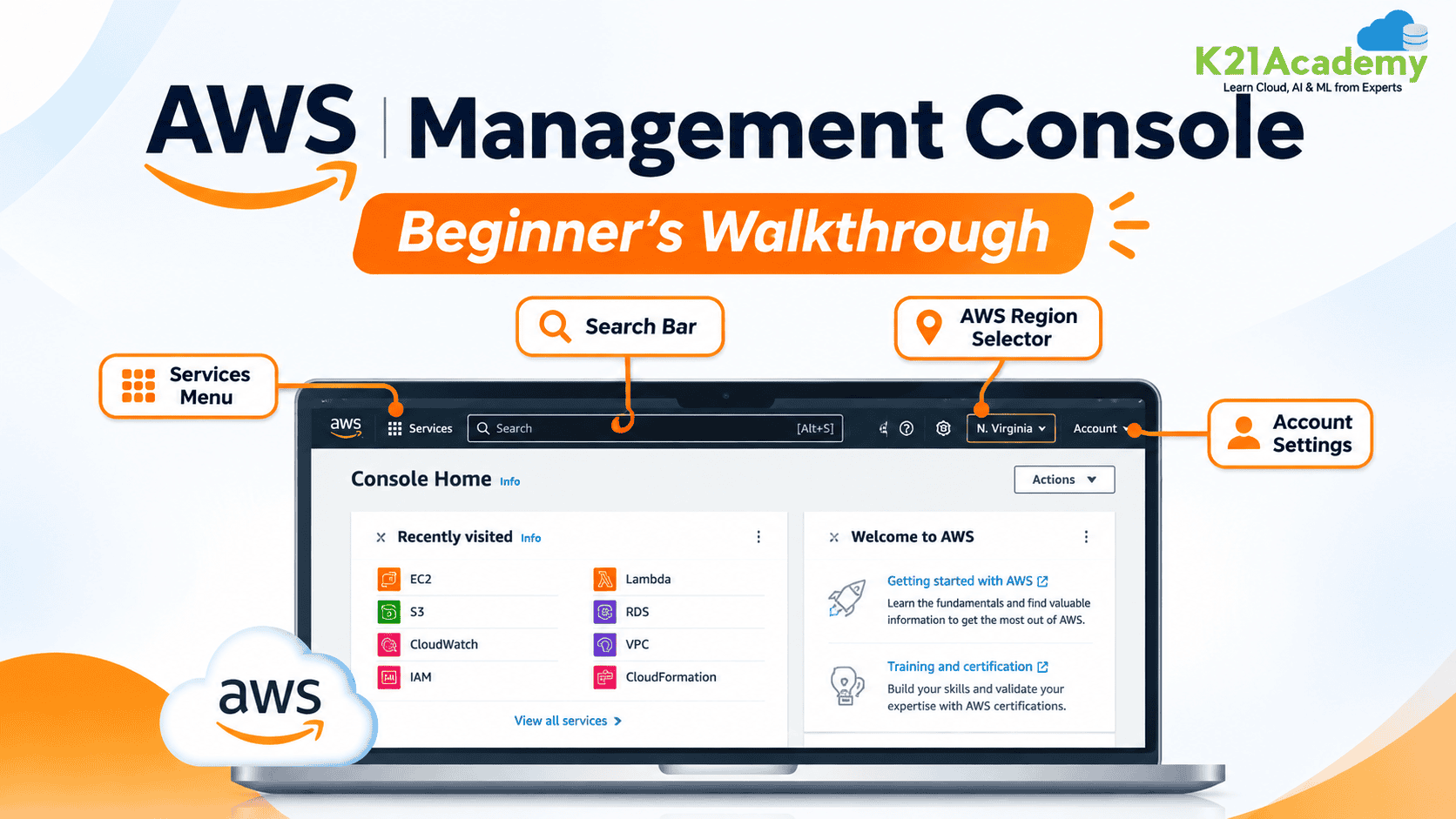



In this AWS Management Console tutorial, we’ll explore how beginners can navigate the AWS Console and manage cloud services through its web-based interface.
You’ll learn how to sign in, access AWS services, manage favorites, select AWS Regions, check billing information, and use the AWS Console Mobile Application.
This will provide a short introduction for those who are starting with the console and want to learn how to work with individual services in the console.
AWS Certification helps you build credibility and confidence by validating your cloud skills with industry-recognized credentials. Learn more about AWS SAA CO3 Certificate, why get certified, and what topics the certification includes.

What is AWS Console
The AWS Management Console is a web-based interface that allows users to access and manage Amazon Web Services (AWS) from a browser.
Using the console, you can launch Amazon EC2 instances, work with Amazon S3 buckets, set CloudWatch alarms, monitor AWS resources, and access billing information without using command-line tools.
Related Readings: Overview of Amazon Web Services & Concepts
What is AWS Management Console?
The Amazon Management Console comprises a broad collection of services for managing Amazon Web Services. When you first sign in, you see the Management console home page.
In the console you will find tools for working with Amazon S3 buckets, launching and connecting to Amazon EC2 instances, setting Amazon CloudWatch alarms, and getting information about your account and about billing.
Read: How to Create AWS Free account
How to Log In to the AWS Management Console?
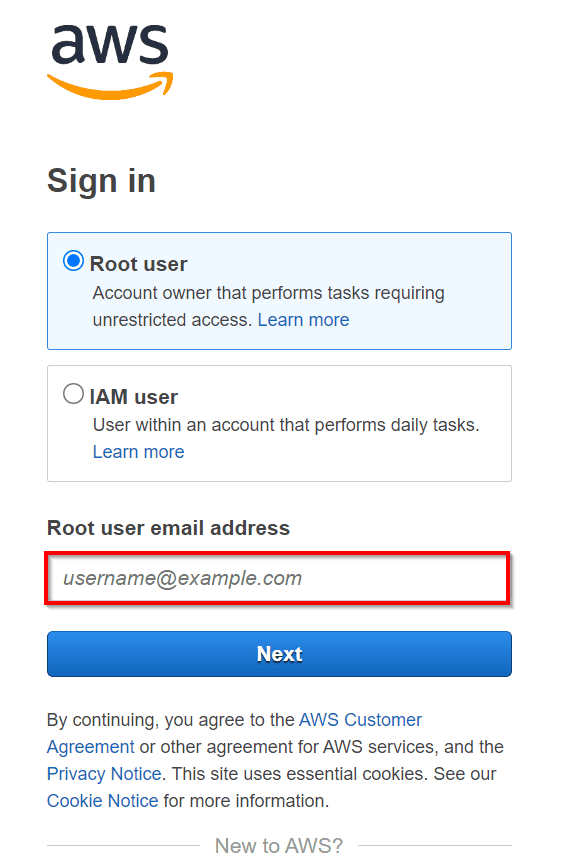
AWS provides different ways to sign in to the AWS Management Console depending on your account and access permissions.
-
Root User: Sign in using the email address associated with your AWS account. Root access should be reserved for tasks that specifically require it.
-
IAM User: Sign in using your AWS account ID or alias, IAM username, and password.
-
IAM Identity Center User: Access AWS accounts through your organization’s AWS access portal using your assigned credentials.
For better account security, enable multi-factor authentication (MFA) and avoid using the root user for everyday administrative tasks.
Related Readings: How to Create a Free Tier Account in AWS
 How to Access AWS Services?
 How to Access AWS Services?
You can access AWS services through the Management Console using the following methods:
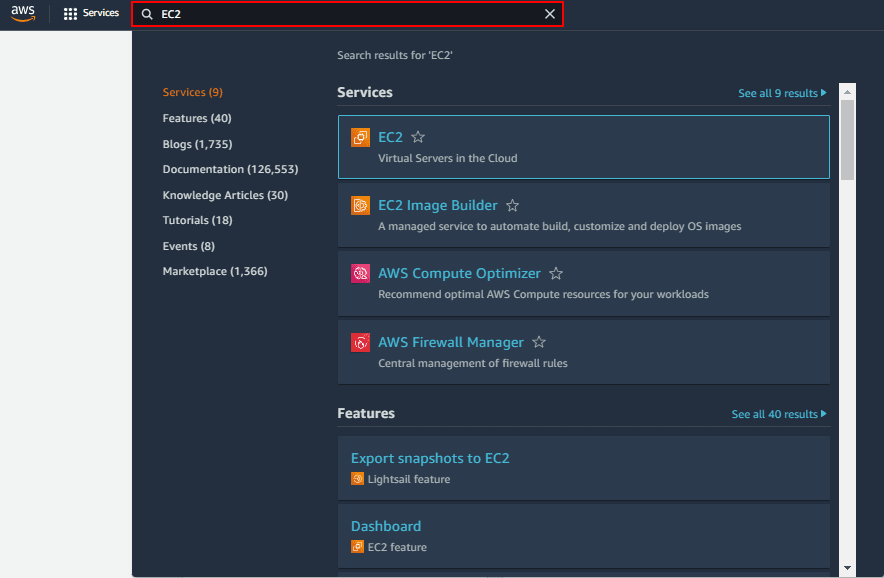
Search Bar: Enter the service name, such as EC2, S3, or Lambda, in the console’s search bar and select the relevant service.
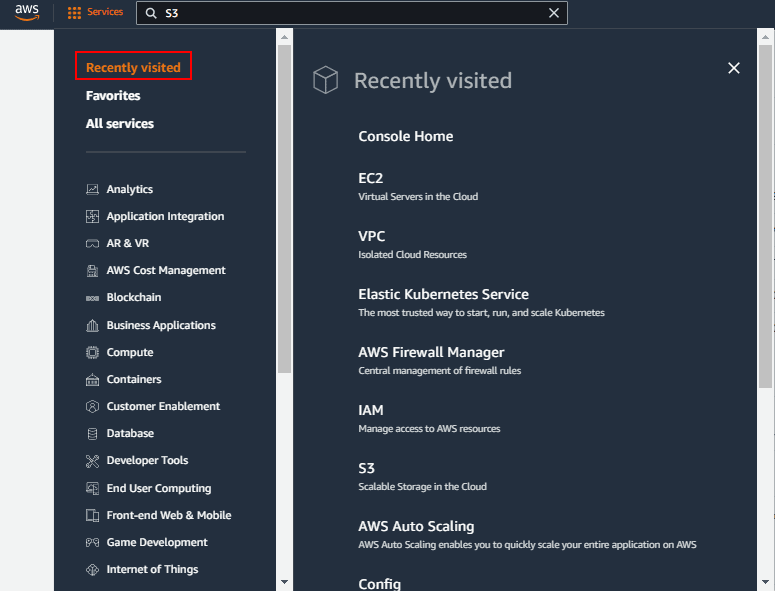
Recently Visited Services: Open the Services menu to access services you have recently used.
All Services: Select Services and browse All services to view available AWS services organized by category.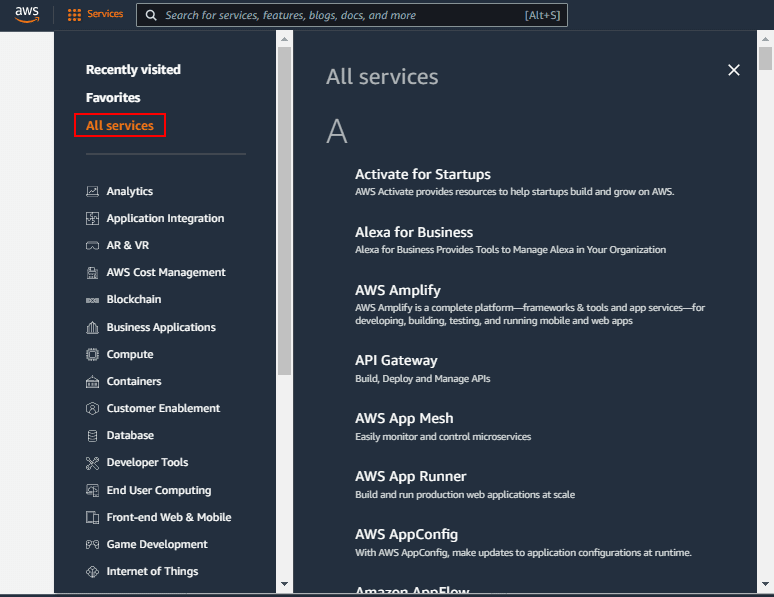
These options help you navigate between AWS services without manually entering service-specific URLs.
Related Readings: AWS EFS, EBS and S3: Best AWS Storage Option
Adding and Removing Favorites
The AWS Management Console allows you to add frequently used services to your Favorites list for quick access.
-
Open the Services menu in the AWS Management Console.
Read: AWS CloudFormation.
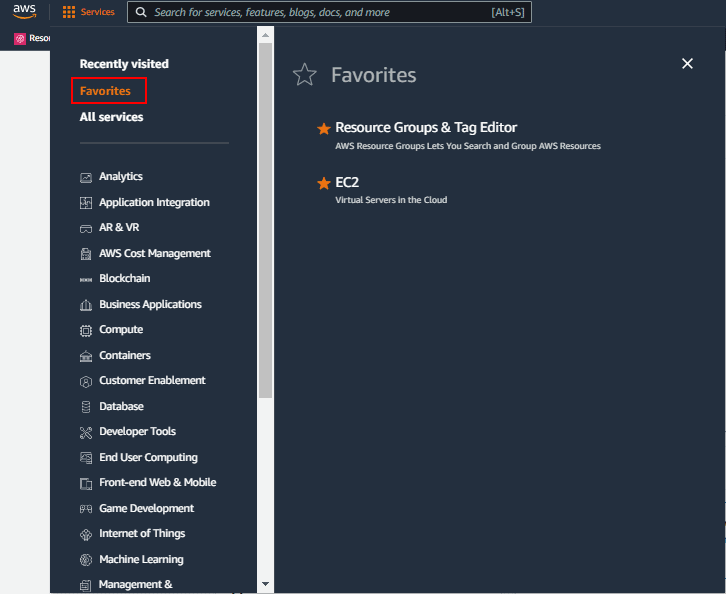
2. Find the service you want to add.
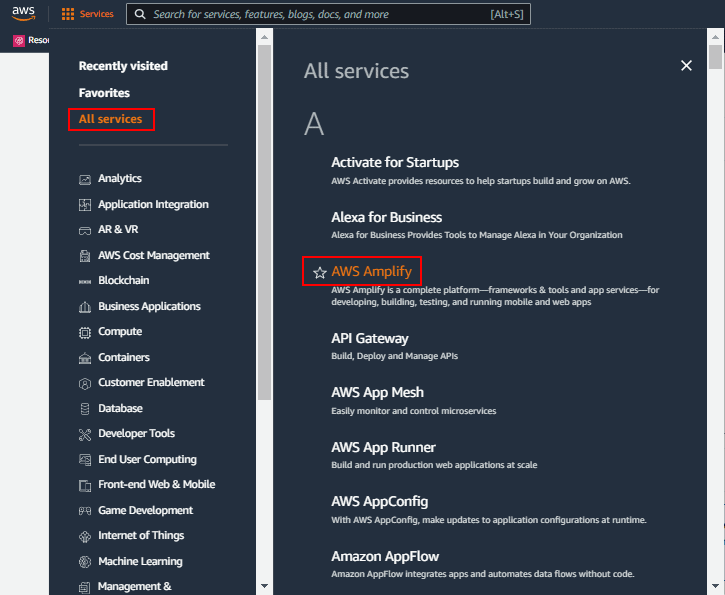
3. Select the star icon next to the service name to add it to Favorites.
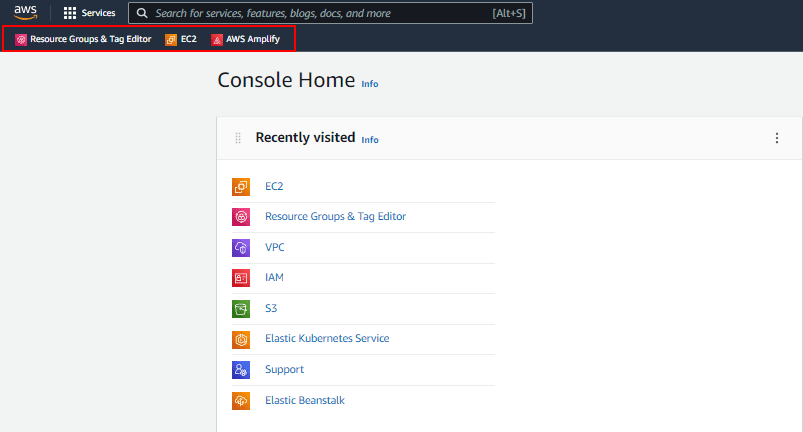
4. Access your saved services from the Favorites list or favorites bar.
5. To remove a service, select its star icon again.
This feature helps you quickly access commonly used services such as Amazon EC2, Amazon S3, and AWS Lambda.
Read: 13 Reasons to Why Learn AWS
Selecting Region
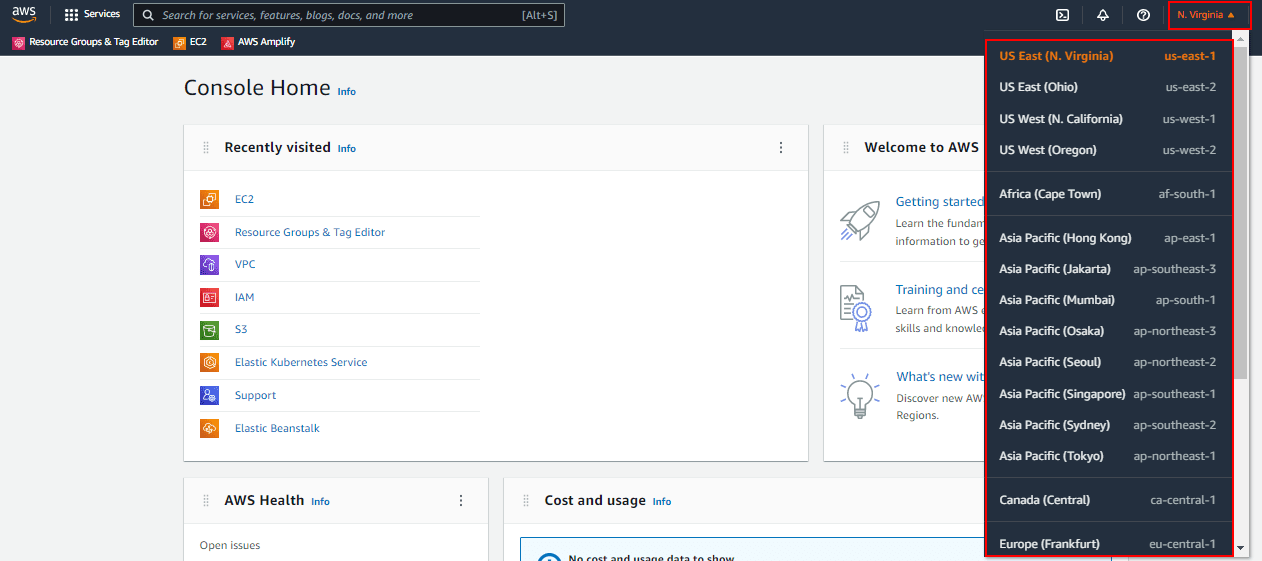
AWS services are available in different geographic Regions, and some services or features may not be available in every Region.
To change the AWS Region, select the Region name in the top navigation bar and choose the Region where you want to manage your resources.
My Billing Dashboard
The AWS Billing and Cost Management dashboard helps you monitor AWS spending, review bills, and manage cloud costs.
-
Sign in to the AWS Management Console.
-
Search for Billing and Cost Management or access billing through the account menu.
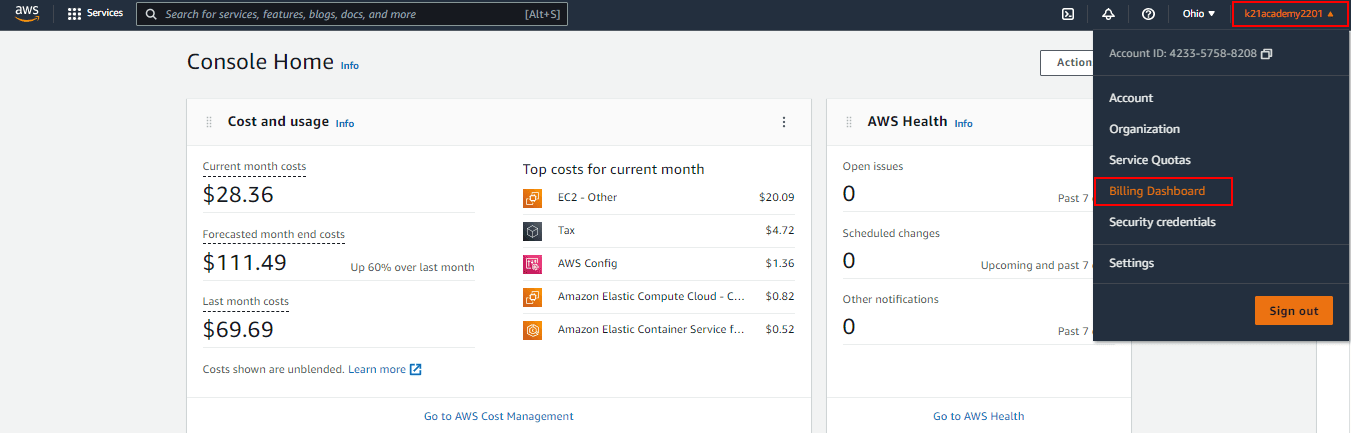
3. Open the billing dashboard to review your monthly spending and service charges.
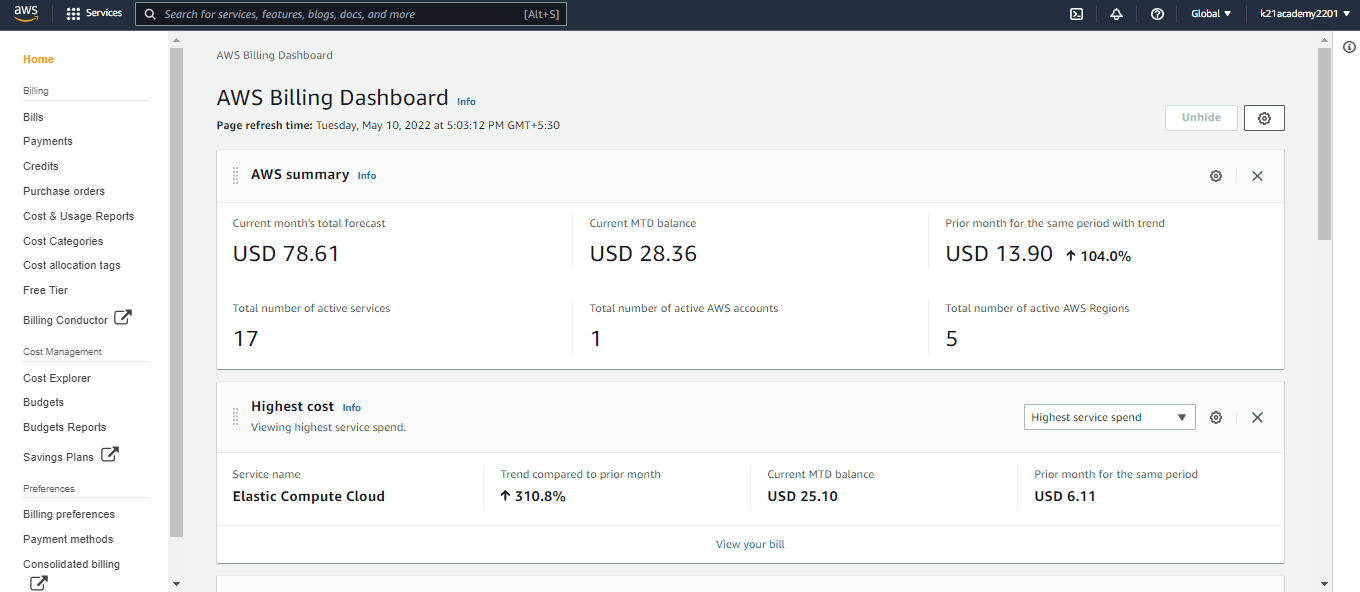
4. Use AWS Cost Explorer to analyze costs by service, Region, or time period.
5. Configure AWS Budgets to monitor spending and receive cost notifications.
You need appropriate billing permissions to access these features.
AWS Console Mobile Application
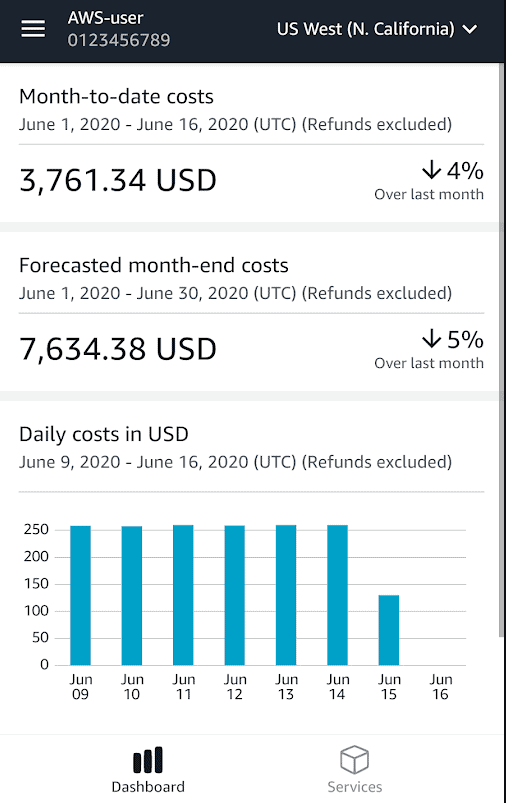
The AWS Console Mobile Application allows users to monitor and manage supported AWS resources from Android and iOS devices.
You can use the mobile application to:
-
View and manage supported Amazon EC2 resources.
-
Monitor Amazon CloudWatch alarms.
-
Review billing and cost information.
-
Access AWS CloudShell and other supported AWS services.
-
Receive notifications and monitor cloud resources.
The mobile app is useful for checking AWS environments while away from your computer, although some tasks still require the full web console.
You can download it from the Google Play Store, Apple App Store, or Amazon Appstore.
You can download the AWS Console mobile app from Amazon Appstore, Google Play, or iTunes
Conclusion
The AWS Management Console provides a simple and user-friendly way to access, manage, and monitor AWS cloud services from a web browser. From launching Amazon EC2 instances and managing Amazon S3 buckets to configuring security settings and tracking billing, the console makes cloud management easier for beginners and experienced professionals.
By understanding how to navigate AWS services, manage favorites, select Regions, and monitor costs, you can work more efficiently with AWS resources.
If you’re new to AWS, start by exploring the Management Console and practicing with basic services to build your cloud computing skills and confidence.
Related Readings: AWS Certified Solutions Architect Associate (SAA-C03)
Next Task For You
Begin your journey towards an AWS Cloud by joining our FREE Informative Class on Amazon Cloud Free Class by clicking on the below image.